Connect your own GoHighLevel
Connect your GoHighLevel sub-account: families and tutors become contacts there, new contacts arrive in Pillar as leads, and replies land in Pillar.
 Written by the Pillar OS team Updated November 19, 2026
If your centre already runs its marketing in GoHighLevel, connect your own sub-account to Pillar. You sign in with GoHighLevel’s own page, so there is nothing to copy or paste. The connection works both ways: what you save in Pillar goes to GoHighLevel, and a new contact in GoHighLevel comes into Pillar as a lead.
Pillar runs fully without GoHighLevel. Your pipeline, schedule and billing stay in Pillar either way.
Connect your sub-account
Where: Settings › Connections › Integrations › GoHighLevel
- Click Connect GoHighLevel.
- In GoHighLevel, sign in, pick your centre’s sub-account and allow Pillar OS. Pick one sub-account, the one your centre uses, not the whole agency.
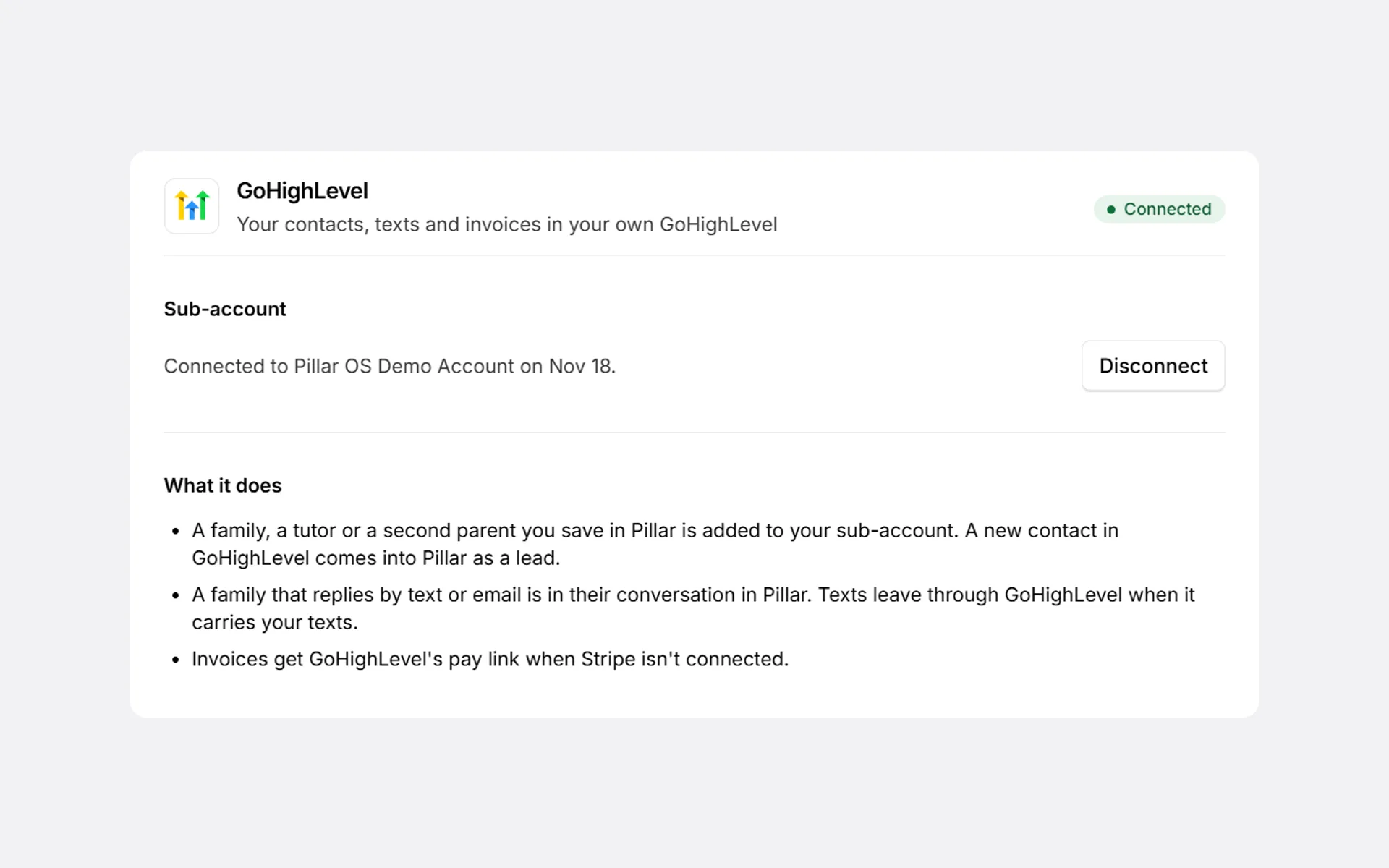
- You come back to Pillar, connected. The card names the sub-account and the day it was connected.
Only the owner of the centre can connect GoHighLevel. Others see Ask the owner of the centre to connect GoHighLevel.
What it does
- A family, a tutor or a second parent you save in Pillar is added to your sub-account as a contact.
- A new contact in GoHighLevel comes into Pillar as a lead, ready to book, still saying where it came from.
- A family that replies by text or email is in their conversation in Pillar.
- Texts leave through GoHighLevel when it carries your centre’s texts.
- Invoices get GoHighLevel’s pay link when Stripe isn’t connected. With Stripe connected, families pay through Stripe.
Did this answer your question?
Thank you. It helps us know what to write better.
Related articles
Still stuck?
Support is included with every plan. Write to us and a person replies.
Contact support