See and send invoices before they go out
See every invoice waiting to go out and the day it will, fix a line before the family sees it, or send one or all of them now.
 Written by the Pillar OS team Updated November 2, 2026
To send lists every invoice waiting to go out, grouped by who pays, with the day each one goes out on its own. Check it before invoices leave, fix a line, or send an invoice now instead of waiting.
See what goes out and when
Where: sidebar › Billing › To send tab
- Open the To send tab.
- Read Scheduled: one card per payer (a student or a Household), with the billing rhythm, the day it goes out, each lesson line and the total.
- Read Not scheduled: families with invoicing off. Nothing goes out for them until you send it.
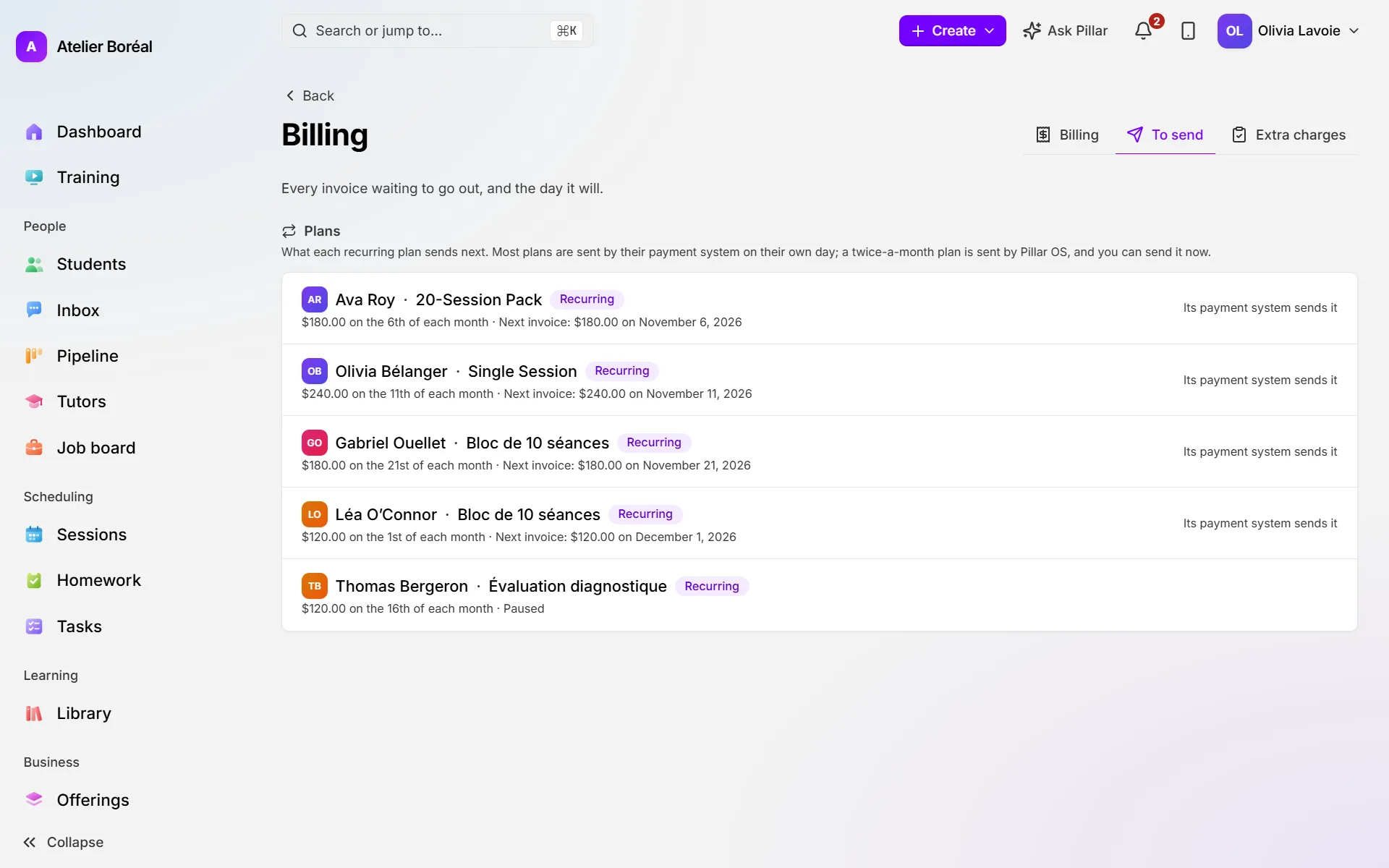
- Read Plans: what each recurring plan sends next.
Look at an invoice before it goes out
Where: To send, on a family’s card
- Click View invoice.
- Read the invoice exactly as the family will receive it, and the day it goes out.
- Close it, or click Change invoice to fix it.
The invoice gets its number only when it is sent.
Remove a lesson or fix a price
Where: To send › View invoice › Change invoice
- Change a line’s words, Unit price or Qty in place. Undo change puts it back.
- To take a lesson off, click Remove this line. Put back returns it.
- To add something, click Add a line and fill in the Item, Unit price and Qty. In a household, pick the Student.
- Click Save changes. Nothing changes until you save.
Send one invoice now
Where: To send, on a family’s card
- Click Send now (on a Not scheduled card, the button is Send).
- Confirm. Everything on that card goes out as one invoice.
Send everything now
Where: the top of To send
- Click Send all now.
- Confirm. Every waiting invoice goes out now instead of on its own day.
A plan that Pillar sends has its own Send now under Plans. A plan sent by Stripe or another processor reads Its payment system sends it.
Did this answer your question?
Thank you. It helps us know what to write better.
Related articles
Still stuck?
Support is included with every plan. Write to us and a person replies.
Contact support