Give parents access to the family portal
Invite a parent to your family portal, help them activate their login, and choose what families can do there.
 Written by the Pillar OS team Updated November 2, 2026
The family portal is where parents see their child’s lessons, pay what they owe and write to you. You invite each family from the student’s page, and the parent sets up their own login from the email Pillar sends.
Invite a parent to the portal
Where: People › Students, then the student’s name
- Open the student and stay on the Overview tab.
- Under Account, find the Portal access row.
- Click Invite to portal. Pillar emails the invitation to the parent’s email on the record (the student’s own email if there is no parent email).
- Read the green note at the top of the page. It carries an activation link you can share by text or in person if the email does not arrive.
- Check the row: it says Pending activation until the parent finishes, then Portal linked.
If the parent already has a login at your centre (for a brother or sister), Pillar adds this child to that login instead. The parent gets a short email saying the child was added, and there is nothing to activate.
What the parent does to get in
The parent does this on their side, from the email and the page it opens.
- Open the invitation email from your centre and click its link.
- On Activate your account, confirm the email address and click Send code.
- Type the Verification code from the new email and choose a password.
- Click Verify & continue. The portal opens on the family’s Overview.
What a parent sees in the portal
The parent’s menu has Overview, Calendar, Billing, Children, Children’s corner, Plans & programs, Messages and Contact. The Overview shows the next lesson, the credits left and the amount due, with Quick actions to book, open the calendar or contact you.
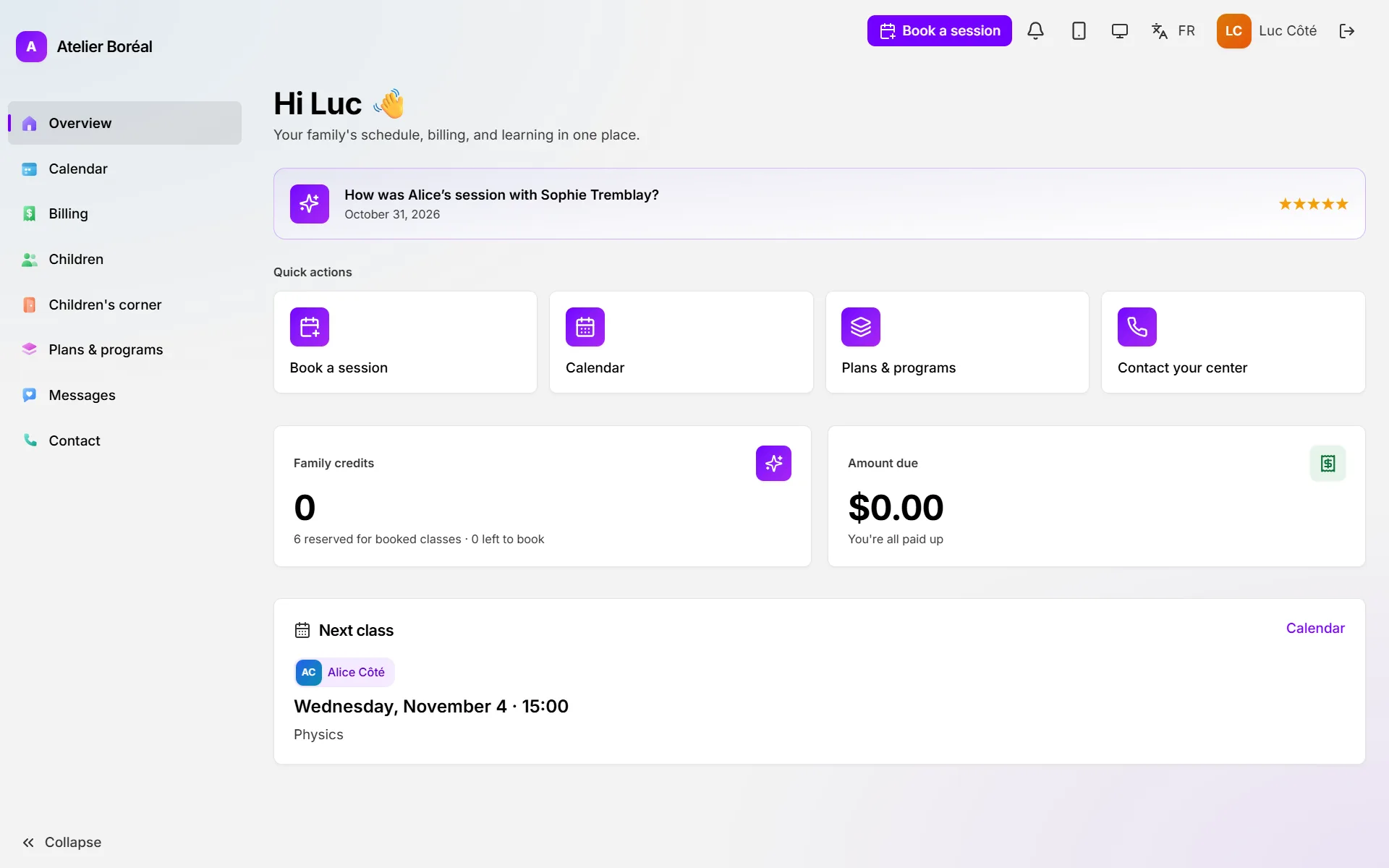
Areas you turn off in Settings › Features leave the portal too. With Messages with families off, families lose Messages. With Billing off, they lose Billing and Plans & programs.
Resend the invitation or take access away
Where: the student’s Overview, under Account
- Click Resend invite if the parent never got the email.
- Click Revoke portal access to close their login for this child.
Choose what families can do in the portal
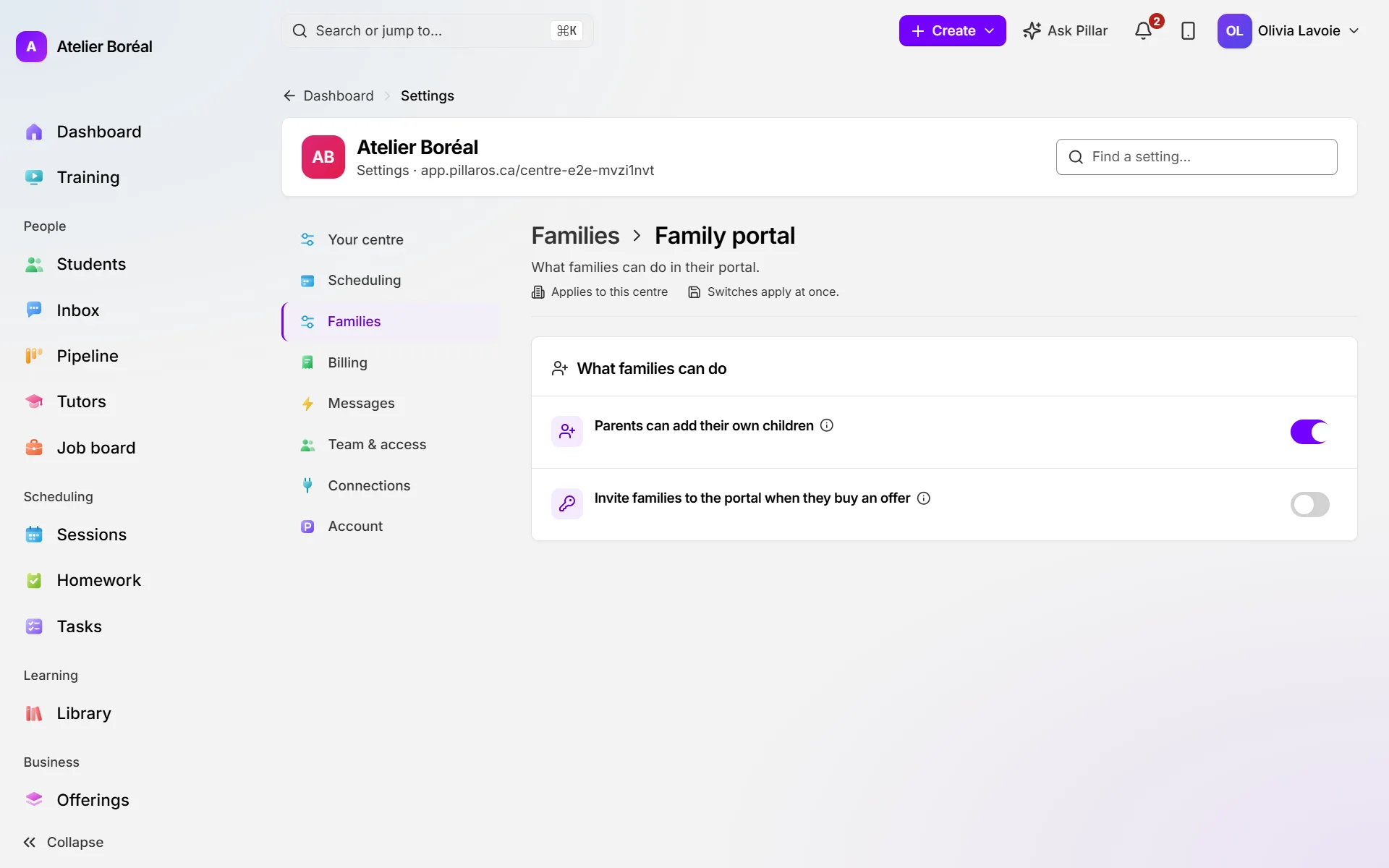
Where: Settings › Families › Family portal
- Under What families can do, find Parents can add their own children (on by default) and flip it if you want the front desk to add every child.
- Flip Invite families to the portal when they buy an offer (off by default) so that a family who buys a credit pack, a plan or a program through a registration form gets its invitation on its own.
- Leave the page: both switches save the moment you flip them.
Did this answer your question?
Thank you. It helps us know what to write better.
Related articles
Still stuck?
Support is included with every plan. Write to us and a person replies.
Contact support