Session notes and progress reports
Write notes after a lesson, let Pillar turn them into a short summary for the parent, and send a progress report written from recent sessions.
 Written by the Pillar OS team Updated November 2, 2026
After each lesson, the tutor writes a few notes. Pillar turns them into a short summary for the parent, and from time to time you can send a fuller progress report built from the student’s recent sessions and homework.
Write notes after a lesson
Where: Scheduling › Sessions › the session
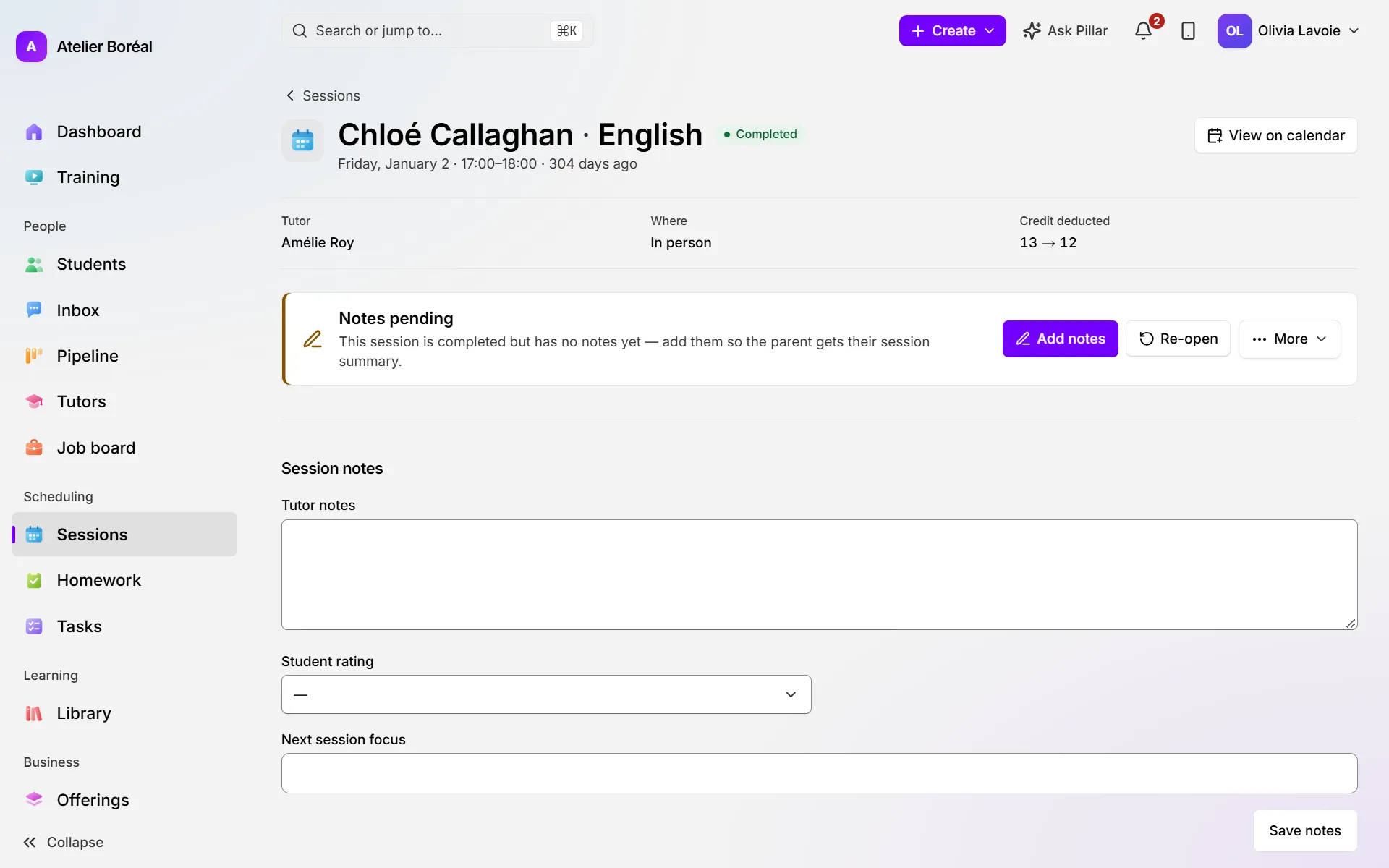
- Open the session. If it is not marked done yet, click Mark completed, confirm, then click Add notes.
- Under Session notes, write the Tutor notes: what you covered, how it went, what was hard.
- Choose the Student rating and write the Next session focus.
- Click Save notes.
Check the summary the parent gets
Where: the session page › AI summary for the parent
- After you save notes, Pillar writes a warm two or three sentence summary for the parent, in the family’s language.
- Read it under AI summary for the parent.
- If your notes changed, click Regenerate for a new version (or Generate if there is none yet).
- To email a corrected summary to the parent, click Send to parent.
Send a progress report
Where: Students › a student › Progress
- Open the student and go to the Progress tab.
- Under Progress report, click Generate report. Pillar drafts it from the student’s recent sessions and homework.
- Read and edit the text. Click Regenerate to start over.
- Click Save draft to finish later, or Save & send to email it to the parent.
Did this answer your question?
Thank you. It helps us know what to write better.
Related articles
Still stuck?
Support is included with every plan. Write to us and a person replies.
Contact support