Import your students from a spreadsheet
Bring your whole student list into Pillar OS from Excel, Google Sheets or a CSV file, and see what comes in and what is left out.
 Written by the Pillar OS team Updated November 2, 2026
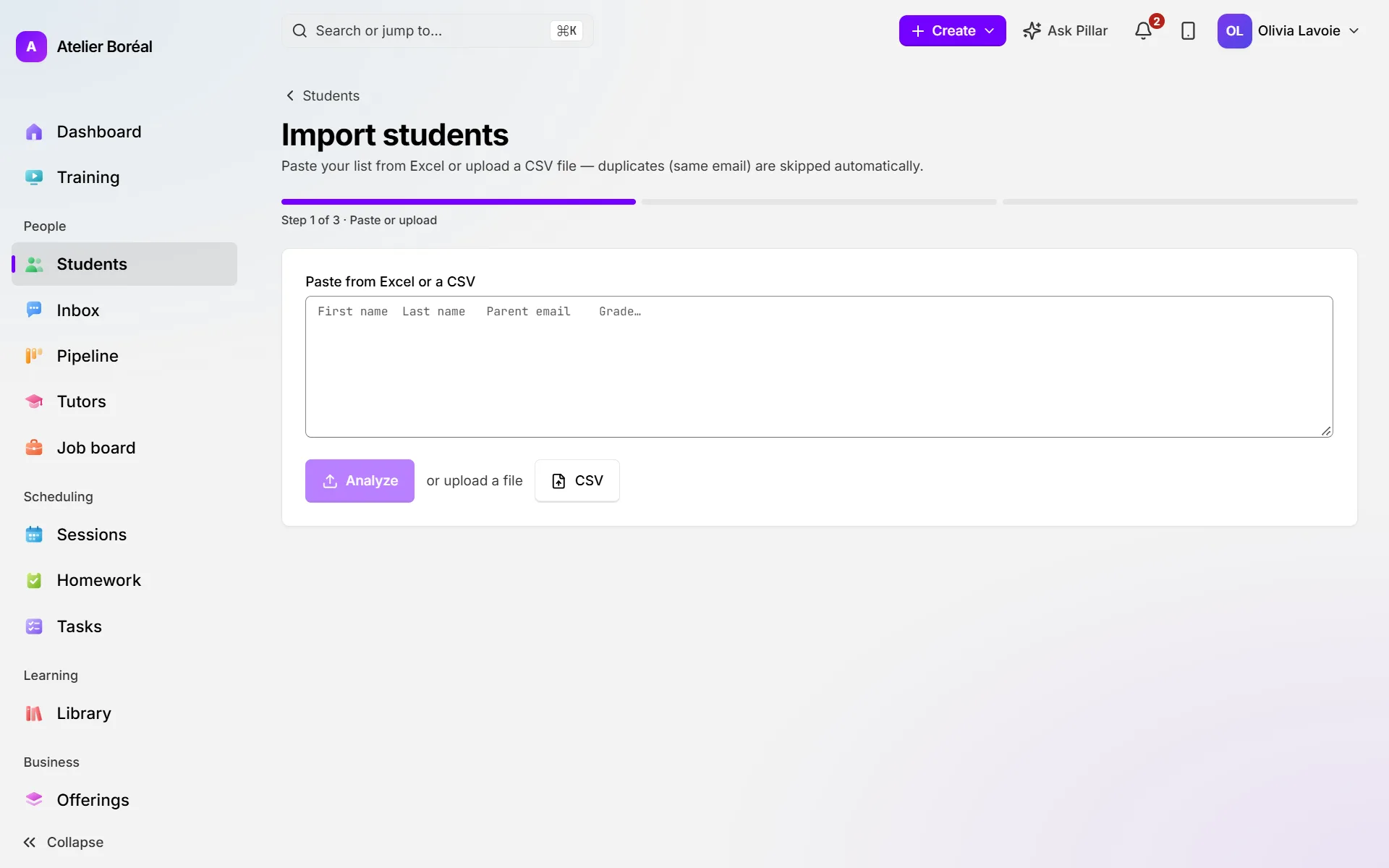
Instead of typing families one by one, paste your list from Excel or Google Sheets, or upload a CSV file. Pillar matches your columns, imports every good row and tells you exactly which rows it left out and why.
Import your list
Where: People › Students › Import
- Copy your rows from Excel or Google Sheets, with the header row first, and paste them under Paste from Excel or a CSV. Or click or upload a file and choose a .csv, .tsv or .txt file.
- Click Analyze. Pillar says how many rows it found.
- Under Map the columns, check the match Pillar picked for each of your columns. Change any that are wrong, or choose Ignore for a column you don’t want.
- Next to Import as:, choose Active (students you teach now) or Lead (families still deciding).
- Click Import … student(s). Keep the page open while it says Importing….
- On Import complete, read how many were imported, skipped and rejected, then click View students.
What the import accepts
Pillar can fill these fields from your columns:
- First name and Last name (both must be mapped, or nothing can be imported)
- Email (student) and Phone (student)
- Parent first name, Parent last name, Parent email and Parent phone
- Grade and Subject
- Session credits, only when your centre uses session credits
- The other parent’s first name, last name, email and phone, only when Two parents is turned on
What it leaves out
- Rejected: a row with no first or last name, or with an email that isn’t valid. The report lists each rejected row by number, with the reason.
- Skipped as a duplicate: a student already in Pillar with the same student email or, when there is no student email, the same parent email and first name. Duplicates inside the same file are skipped too.
- With Two parents on: a row with neither a student nor a parent email is left out, because every family needs an email. When an other parent’s details can’t be used (same email as the main parent, no email, or an email that doesn’t look right), the student still comes in without them, and the report says so.
- Never imported: past sessions, invoices and payments. Only student and family details (and session credits) come in.
Did this answer your question?
Thank you. It helps us know what to write better.
Related articles
Still stuck?
Support is included with every plan. Write to us and a person replies.
Contact support