Coupons and extra charges
Create promo codes families use when they register or buy, and approve the extra fees tutors submit before they reach an invoice.
 Written by the Pillar OS team Updated November 2, 2026
Coupons are discount codes families type on your registration forms and in their portal. Extra charges are fees beyond the lesson, such as a workbook, a report or an exam fee: tutors submit them, and you approve them before they reach an invoice or a payslip.
Create a coupon
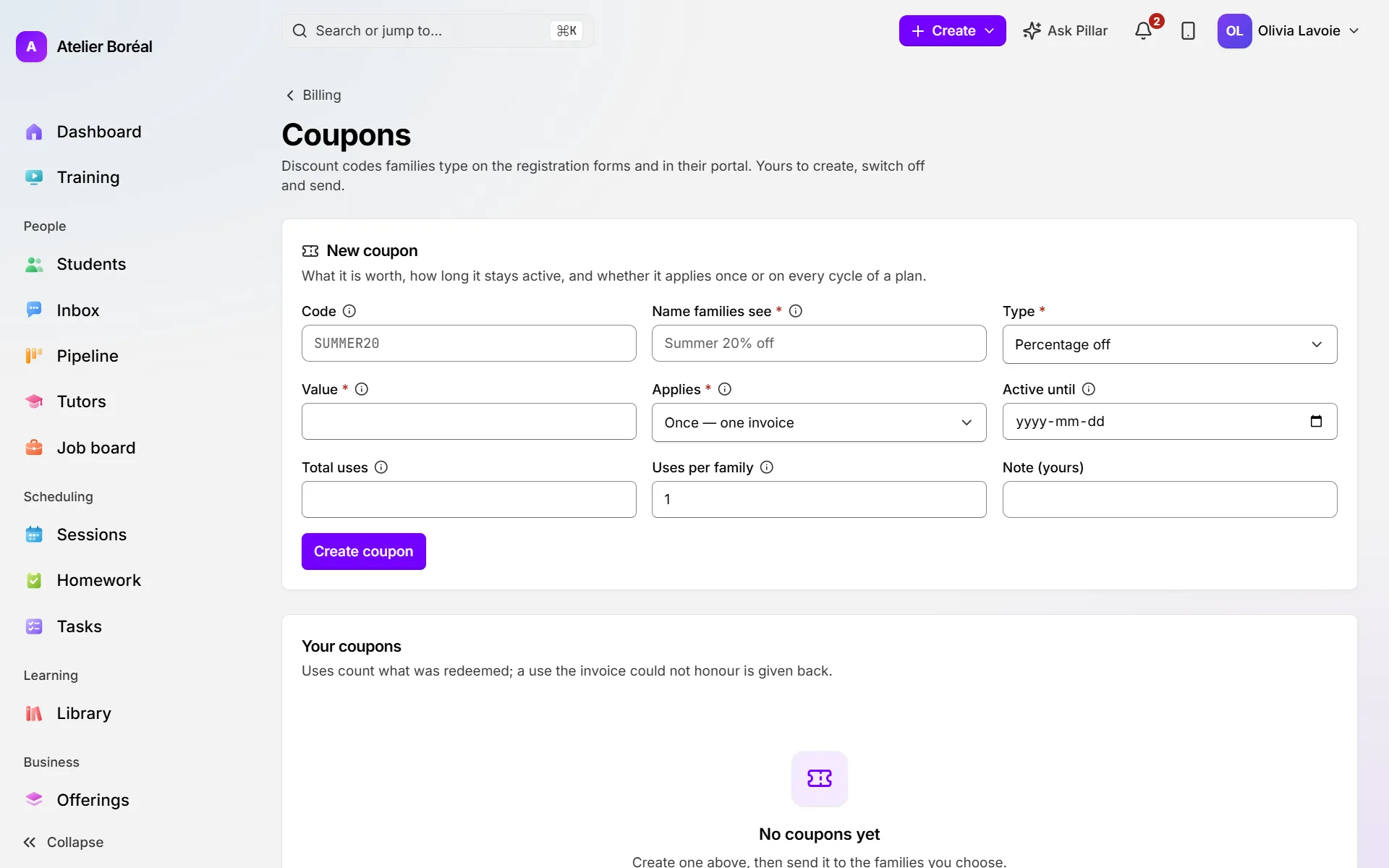
Where: sidebar › Billing › Coupons (at the top of the Billing tab)
- Under New coupon, type a Code (3 to 32 letters, digits or dashes, like SUMMER20), or leave it blank and Pillar makes one.
- Fill in the Name families see. It is printed on the invoice beside the discount.
- Choose the Type: Percentage off or Amount off (CAD), then the Value (20 for 20%, or 10 for $10).
- Under Applies, choose whether it covers one invoice or every cycle of a plan.
- If you want, set Active until, Total uses and Uses per family (usually 1). Then click Create coupon.
Send a coupon to families
Where: Coupons › Your coupons
- On an active coupon, open Send to families.
- Click Choose families and tick the families.
- Click Send coupon. Each family gets one email with the code and how to use it.
To stop a code from working, click Switch off on its row. Switch on brings it back.
Approve an extra charge
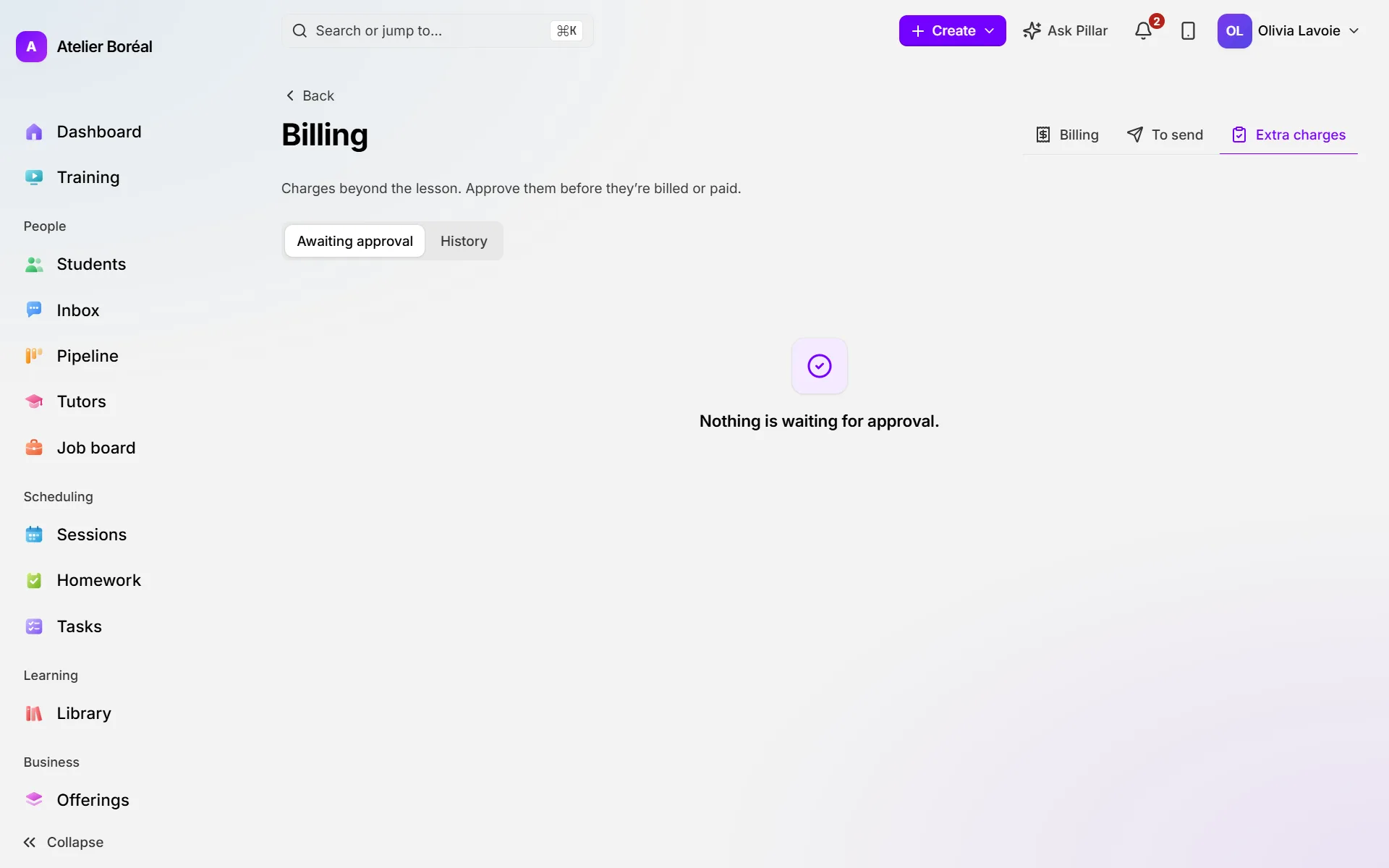
Where: sidebar › Billing › Extra charges tab
- In Awaiting approval, click Approve on the charge.
- Check the Hours (for hourly items), the Price for the family and the Tutor pay (blank means the tutor earns nothing for it).
- Confirm with Approve. The charge reads Approved · awaiting the invoice run and goes on the family’s next invoice.
Refuse, bill now or undo an extra charge
Where: Billing › Extra charges
- To refuse a charge, click Send back, write Why it is sent back and confirm. The person who submitted it sees the reason.
- To bill an approved charge right away, click Invoice now and confirm. It goes to the family alone, without waiting for the next invoice.
- To undo an approval, click Unapprove and confirm. The charge goes back to Awaiting approval.
Add an extra charge yourself
Where: the student’s page › Billing
- Under Extra charges, click Add a charge.
- Fill in What is it?, how it is Charged (Per hour or Once), the Price for the family and the Tutor pay, then add it.
- A charge you add yourself is approved at once. You can also add one from a session.
Did this answer your question?
Thank you. It helps us know what to write better.
Related articles
Still stuck?
Support is included with every plan. Write to us and a person replies.
Contact support