Put booking and forms on your website
Build a booking form, enquiry form, tutor list or catalogue in Pillar, place it on your centre's website and publish it.
 Written by the Pillar OS team Updated November 2, 2026
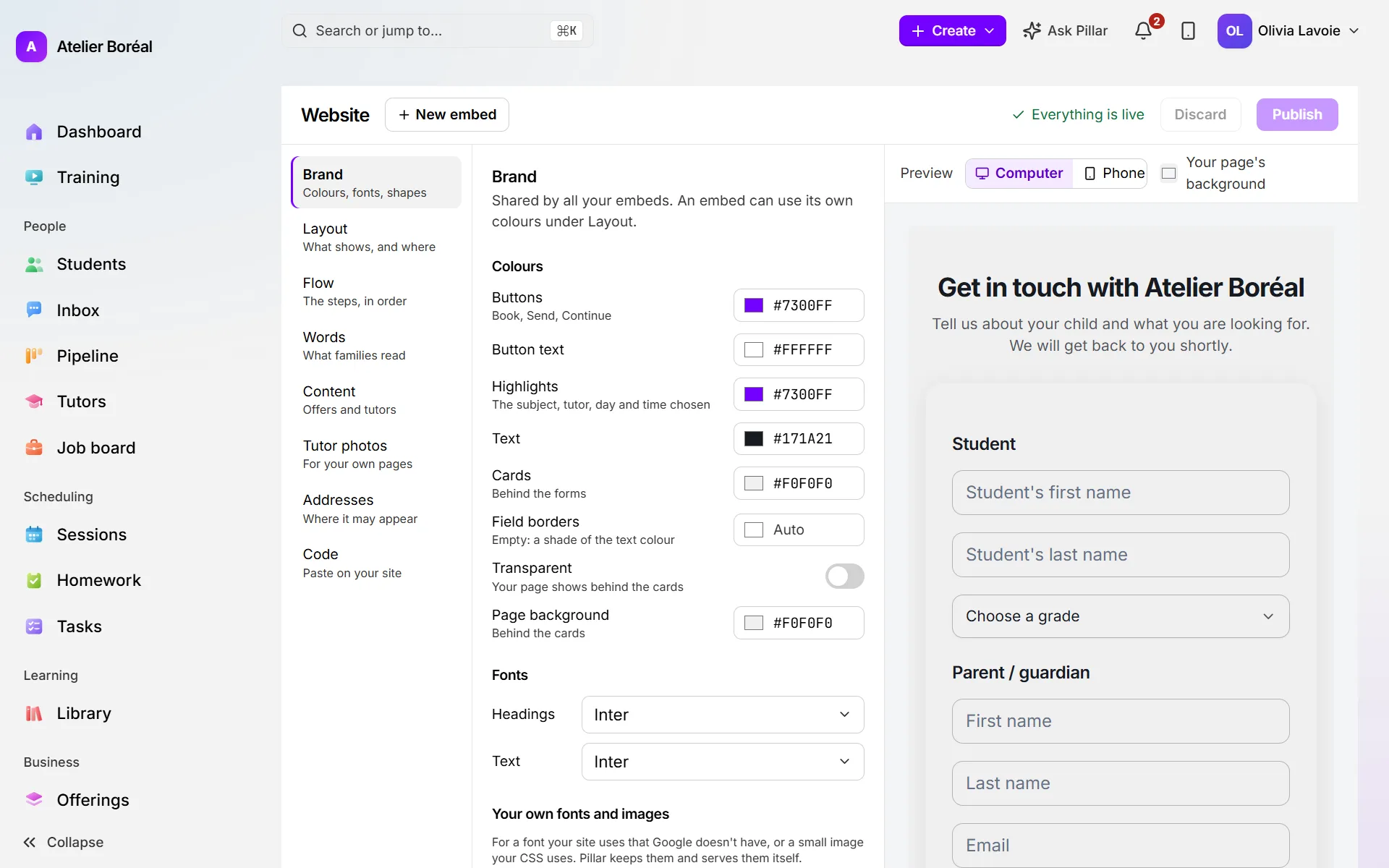
The website builder makes the pieces Pillar places on your own website: a booking form, an enquiry form, a tutor list, a catalogue of your plans and programs, and registration forms. You set each one up beside a live preview, paste its code on your site once, and publish.
The builder needs the Website add-on. Without it, the page says Your website add-on is off: ask the Pillar team to turn it on for your location.
Make a new embed
Where: Business › Website (on a computer)
- Click New embed at the top.
- Choose what it is: Booking, Enquiry form, Tutors, Catalogue or Registration (one offer families register for).
- Open Brand to set your colours, fonts and shapes. They are shared by all your embeds.
- Open Layout to give the embed a Name (only your team sees it), and choose its width, logo, heading and intro line. A registration form also needs its Offer here.
- Open Words, click any line in the preview and write your own. An empty line shows Pillar’s words.
- Click Publish.
Let families book from your website
Where: Business › Website, your Booking embed
- Open Flow.
- Choose the Order: Choose first (the tutor and the time, then who it is for, like a shop) or Details first (the form, then the choice).
- Set Phone number required if you need one, and under After the booking pick Show Pillar’s confirmation or Send them to a page on your site.
- Turn on Families can book from your website.
- Click Publish.
Bookings from your website follow the same window, lesson length and gaps as the portal, set in Settings › Booking rules.
Put the embed on your site
Where: Business › Website, the embed you want
- Open Addresses, type your site’s address (for example monsite.ca) and click Add.
- Open Code and pick Recommended, or Plain iframe if your site builder only accepts an iframe.
- Click Copy code and paste it into your site, or click Email it to my web person.
- Paste it once. Every later change goes live when you click Publish, and the code stays the same.
Code also gives links you can share without a website: the Enquiry form, the Catalogue and, when bookings are on, Booking.
Change, undo or take an embed down
- Click Discard to throw away changes you have not published.
- Open Earlier versions and click Restore to bring back a past publish.
- To stop an embed showing anywhere, open Layout and click Take this embed off.
Did this answer your question?
Thank you. It helps us know what to write better.
Related articles
Still stuck?
Support is included with every plan. Write to us and a person replies.
Contact support