Let families book lessons online
Turn on online booking, set how far ahead and how late families can book, and see how parents book, move or cancel a lesson.
 Written by the Pillar OS team Updated November 2, 2026
With online booking on, parents book their child’s one-to-one lessons in the family portal, at times your tutors are free, and move them without calling you. You decide how far ahead they can book and how much notice they must give.
Turn on online booking
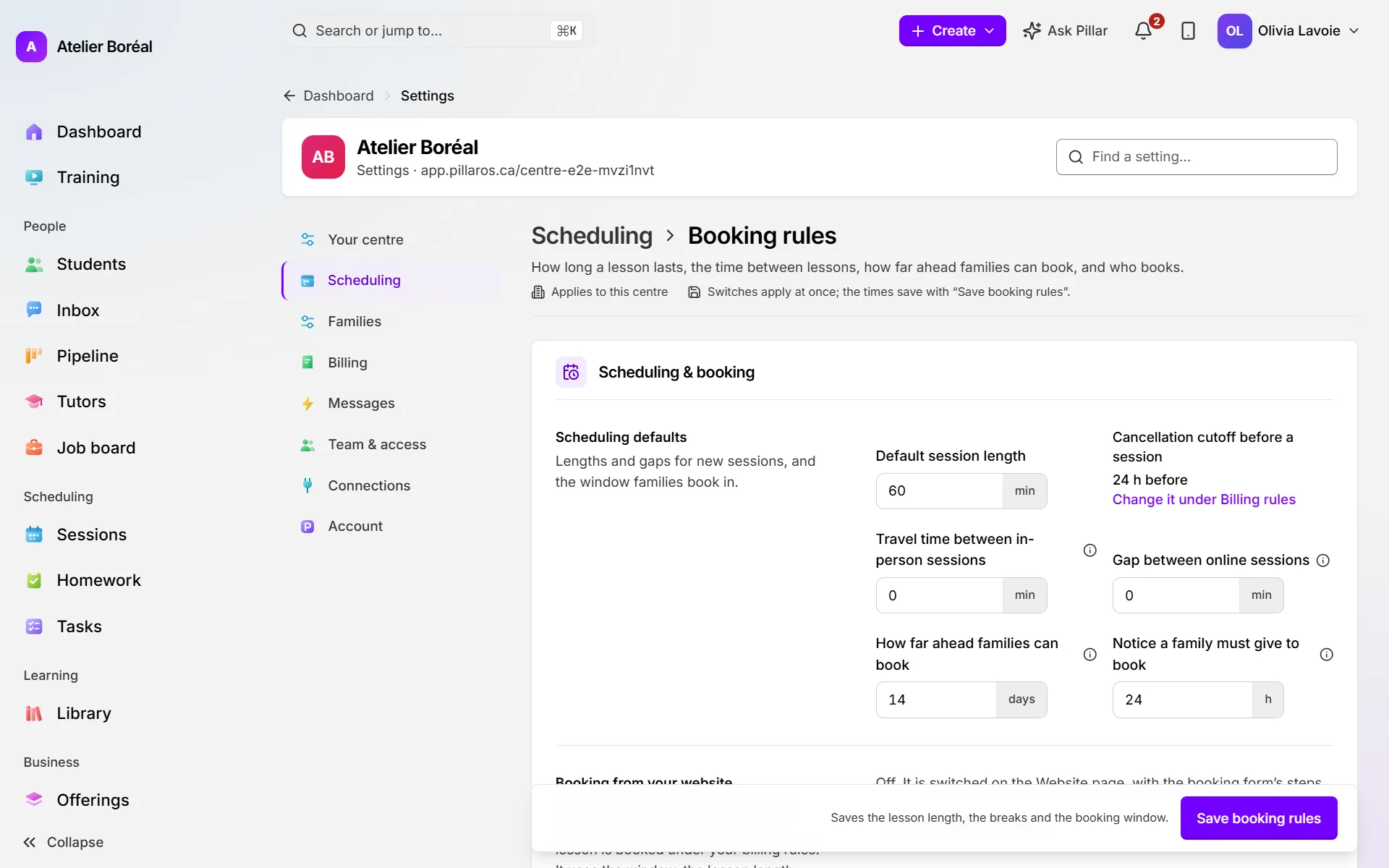
Where: Settings › Scheduling › Booking rules
- Under Who books, turn on Families book online. It applies at once.
- If you want parents to see what an hour with each tutor costs, turn on Show each tutor’s price underneath. Tutors’ pay never shows.
- Under Scheduling defaults, set How far ahead families can book (1 to 90 days, 14 unless you change it).
- Set Notice a family must give to book (0 to 168 hours, 24 unless you change it).
- Click Save booking rules.
Make sure there are times to offer
The portal only offers times that are open in a tutor’s weekly availability. Closed days and approved time off are left out, and so is the travel time or gap you keep between lessons.
- Check that each tutor who takes bookings has weekly hours. See Tutor availability and time off.
- Check that your lessons have a price. A lesson Pillar cannot price cannot be booked online.
- If you use session credits, make sure families have credits. If you don’t, make sure the family is set up to be invoiced. See Billing rules.
How a parent books a lesson
This is what the parent does in the portal.
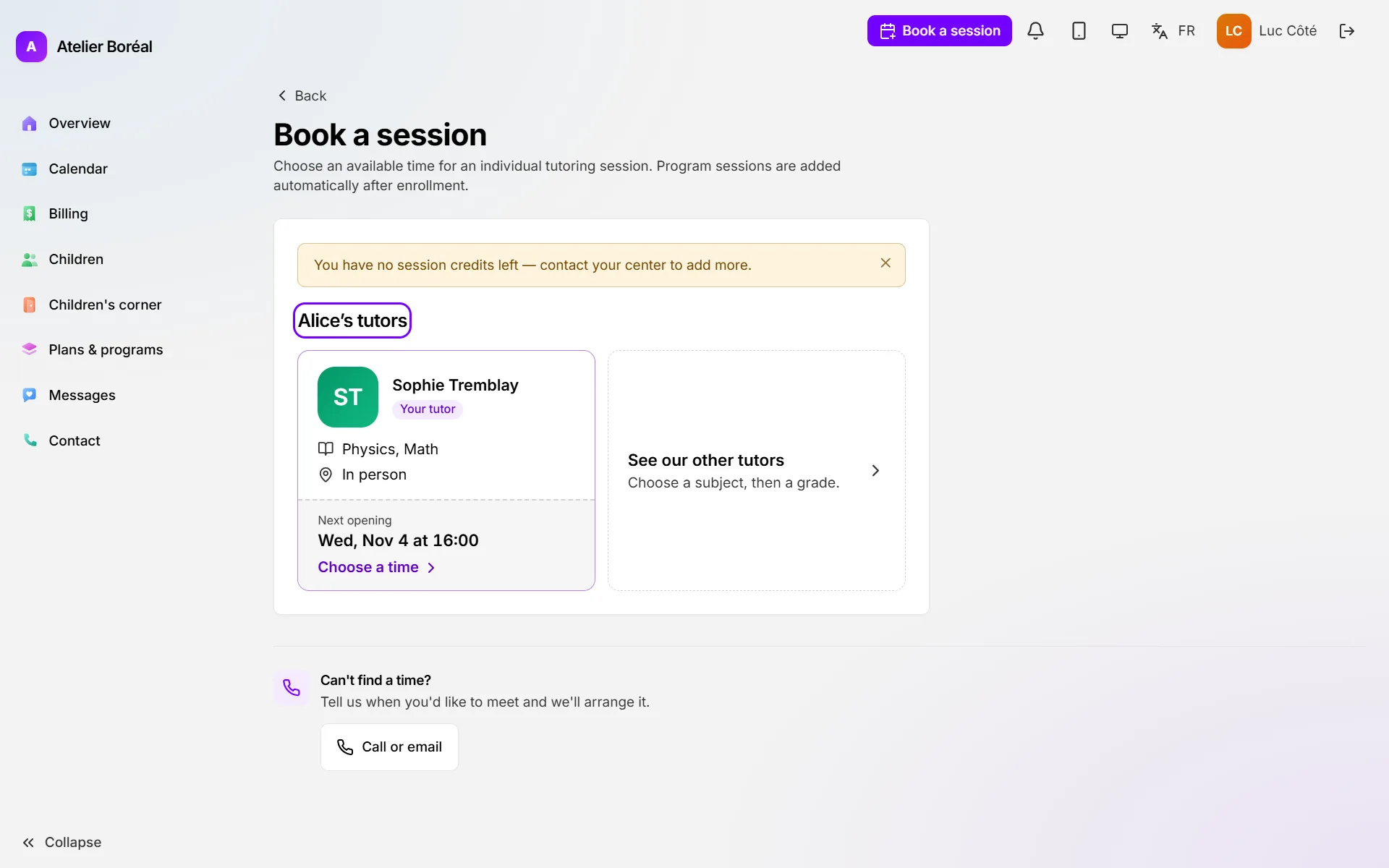
- Click Book a session at the top of any portal page, or in Quick actions on the Overview (the way in on a phone).
- With more than one child, pick the child under Who is it for?.
- Pick one of the child’s own tutors, or click See our other tutors, then answer Which subject?, Which grade? and Choose a tutor.
- If the tutor teaches both ways, answer How will the lesson happen? with Online or In person.
- Under Pick one or more times, choose a day and tap one or more times (up to 10 at once).
- Click Book 1 session (or Book 3 sessions, for three times). The last screen shows each time as Booked.
How a parent moves or cancels a lesson
- Open Calendar in the portal and click the lesson.
- Click Reschedule to pick a new time with the same tutor. A new confirmation goes out.
- Or click Cancel and confirm. The panel says Cancelled. The centre and the tutor have been told.
Before your cancellation cutoff, both buttons are there. Inside it, the lesson can no longer be moved online. It can still be cancelled only if your rules allow late cancellations online, and the parent is warned first that the lesson is still charged. Otherwise the portal asks the parent to contact you.
Did this answer your question?
Thank you. It helps us know what to write better.
Related articles
Still stuck?
Support is included with every plan. Write to us and a person replies.
Contact support