Cancellations, no-shows and make-ups
Set your cancellation and no-show rules, cancel a lesson, record a no-show, give a make-up credit, and undo or correct a session.
 Written by the Pillar OS team Updated November 2, 2026
Pillar applies your own rules each time a lesson is cancelled or a student doesn’t come: who cancelled, how much notice they gave, and what your policy says. You can choose differently on a given lesson, with a reason.
Set your rules
Where: Settings › Billing › Billing rules, under When plans change › Cancellations and no-shows
- Set the Cancellation notice in hours.
- Choose the Late cancellation outcome: Charge the session, No charge, or (if your centre uses credits) Charge, and give a makeup credit.
- Choose the No-show outcome the same way.
- Answer May a family cancel late online?
- Click Save rules.
Under Paying educators on the same page, you also decide whether tutors are paid for no-shows and for late cancellations you charged for.
Cancel a lesson
Where: open the session, then Cancel session
- Under Who is cancelling?, choose The family asked to cancel, The centre is cancelling, or The tutor can’t come.
- Read the line under it: it applies your notice and your late-cancellation rule to this lesson.
- For a series, choose how many sessions it applies to.
- Add a reason. When your rule leaves a choice, pick Charge & makeup credit, Charge or No charge. A choice different from your rule needs a reason.
- Tick Tell the family if they should get an email, then click Cancel the session.
For a centre cancellation, owners and admins can tick Pay the tutor for this session. Reschedule instead opens Edit session so you can move the lesson.
Record a no-show
Where: open a one-to-one lesson that has started
- Click Didn’t come.
- Read the outcome your no-show rule gives. To choose a different one, give a reason.
- Confirm.
In a class, mark the student Absent when you take attendance and choose What this absence costs. To take one student off a class ahead of time, use Withdraw on the roster: it follows the same cancellation rules.
Give a make-up lesson
- Cancel the lesson or record the no-show, and choose Charge & makeup credit (or let your rule choose it).
- The family is charged for the lesson and gets one makeup credit to book again.
- On the cancelled session, click Book the makeup. The booking form opens with the same student and tutor.
Undo or correct a session
Where: open the session (the less common buttons sit under More)
- Restore session puts a cancelled or no-show lesson back. Tick Tell the family it’s back on if they were told.
- Waive charge removes a cancellation charge and gives the family’s credits back. It needs the Billing edit permission.
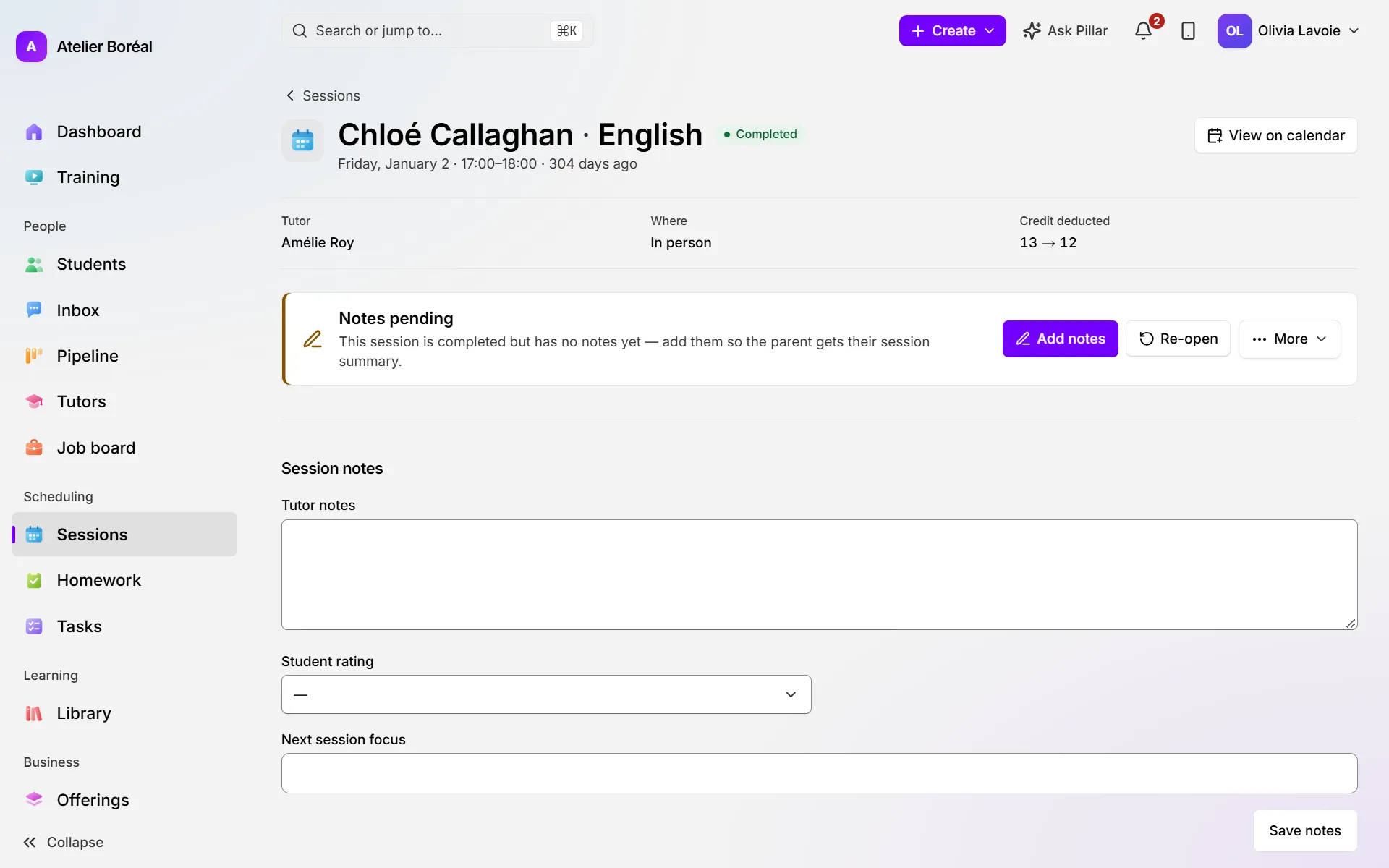
- Re-open (owners and admins) corrects a completed session: say what really happened and why, check what Pillar shows about money and pay, then click Re-open and record.
- Delete is only for a lesson booked by mistake: scheduled, not part of a program, and not billed, credited or marked. Otherwise, cancel it.
Did this answer your question?
Thank you. It helps us know what to write better.
Related articles
Still stuck?
Support is included with every plan. Write to us and a person replies.
Contact support