Track enquiries and new families
Keep every family who asked about tutoring on one board, follow up on time, and turn an enquiry into a student when they sign up.
 Written by the Pillar OS team Updated November 2, 2026
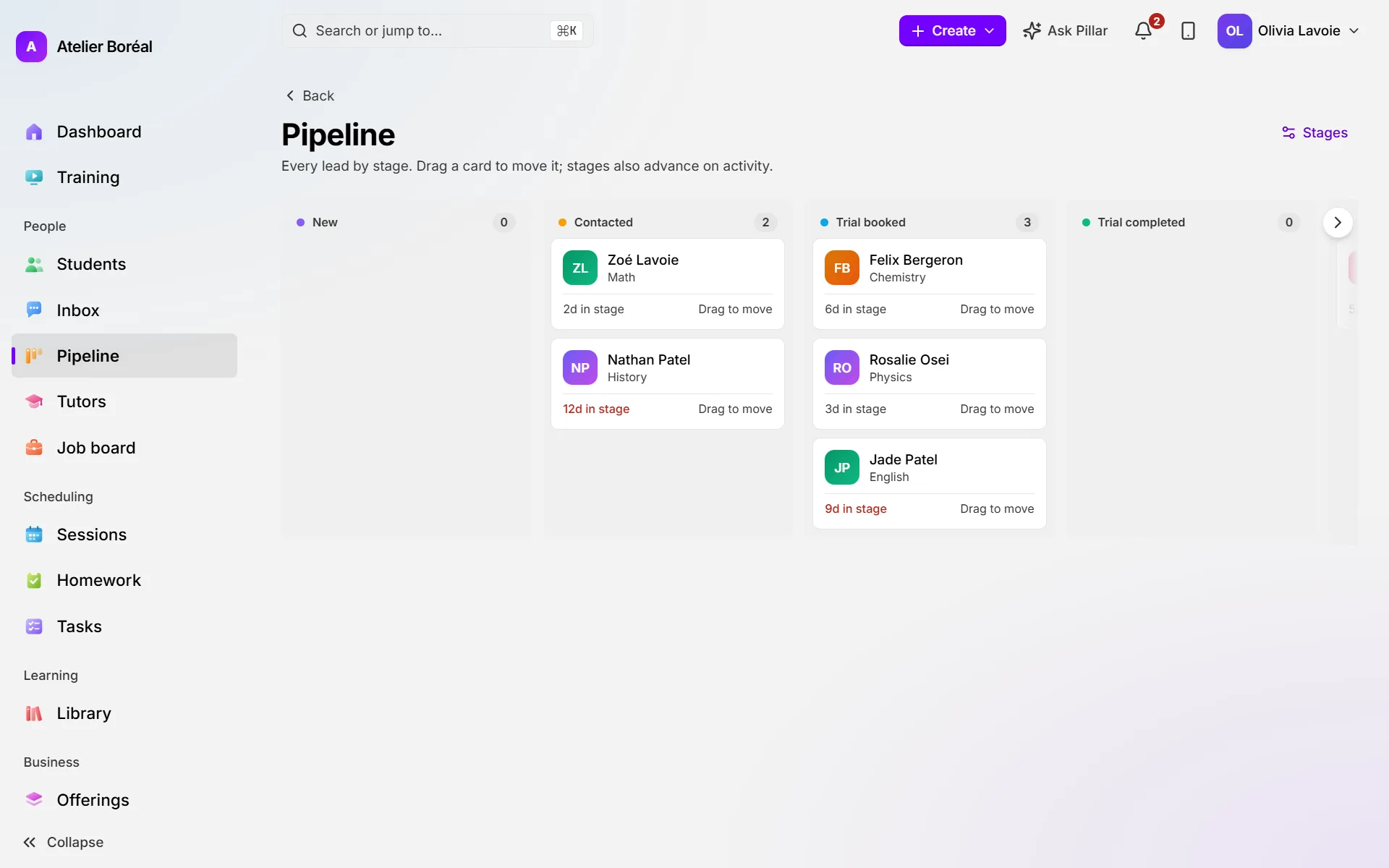
The Pipeline shows every family who asked about tutoring, by stage, from the first call to sign-up. Pillar calls them leads. A lead arrives from your website, from the Inbox, or when you add a student with the status Lead.
Add a family who called or wrote
Where: People › Students › New student
- On Student details, enter the child’s first and last name.
- Set the Status to Lead.
- Fill in the parent’s details on Family & communication, then finish the form and click Create student.
The family now appears on the Pipeline.
Move a lead along the board
Where: People › Pipeline
- Find the lead’s card in its column. Each card shows the subject and how long the lead has been in that stage.
- Drag the card to the next column, for example Contacted or Trial booked.
- If the family decides not to go ahead, drag the card to Lost. If lessons are still booked, choose Cancel the lessons or Keep them.
- Click a name to open the family’s record.
Turn an enquiry into a student
Where: the student’s page › Overview › Next steps
- Click Convert to student.
- Pick the tutor under Assign tutor and the Program.
- Click Convert.
Set your stages and automatic follow-ups
Where: Settings › Families › Leads & pipeline
- Under Your pipeline, click Start a draft.
- Rename, add or hide stages in the draft.
- Open a stage and click Add a follow-up here. Choose When (as soon as they reach it, or after a number of days) and Do (Create a task for the team or Send the family a message), then click Add follow-up.
- For a message, write the words in each language under The message. Nothing is sent until they are written.
- Click Release this draft, choose where each stage’s leads go, then click Release.
Ask families your own questions
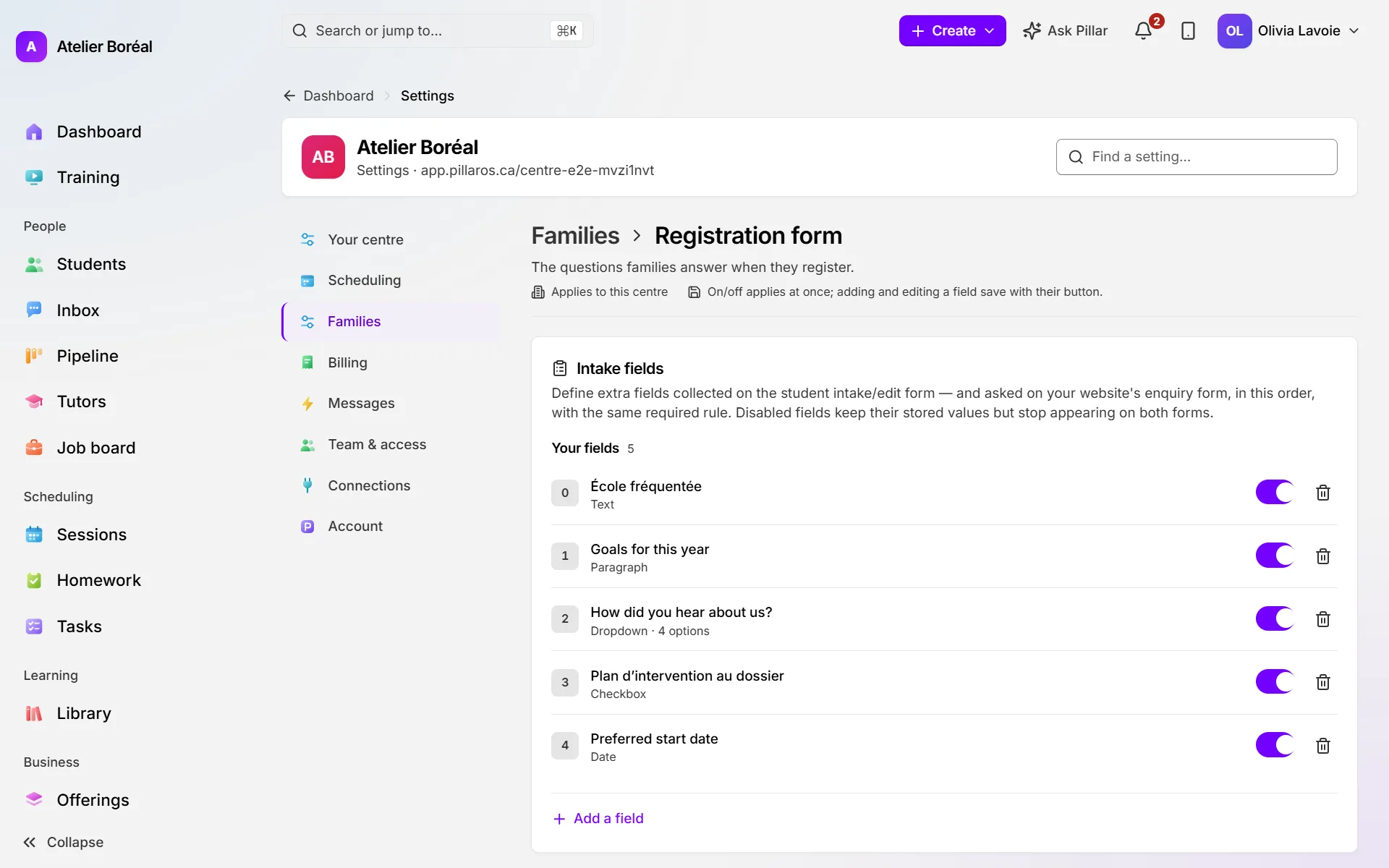
Where: Settings › Families › Registration form
- Under Intake fields, click Add a field.
- Type the Label (English) and Label (French), and choose the Type (Text, Paragraph, Number, Dropdown, Checkbox, Date).
- Tick Required if families must answer, then click Add field.
Did this answer your question?
Thank you. It helps us know what to write better.
Related articles
Still stuck?
Support is included with every plan. Write to us and a person replies.
Contact support