Manage your Pillar OS plan
See your plan and billable students, pay your Pillar OS invoices, update your card and billing contact, or cancel.
 Written by the Pillar OS team Updated November 2, 2026
This page is about your centre’s own plan with Pillar OS, not the plans you sell to families (those live in Offerings). From it you check your plan, pay your invoices, keep your card and billing contact up to date, and cancel if you need to.
Only the account’s owners and account admins can open it.
Check your plan
Where: Settings › Account › Pillar OS plan
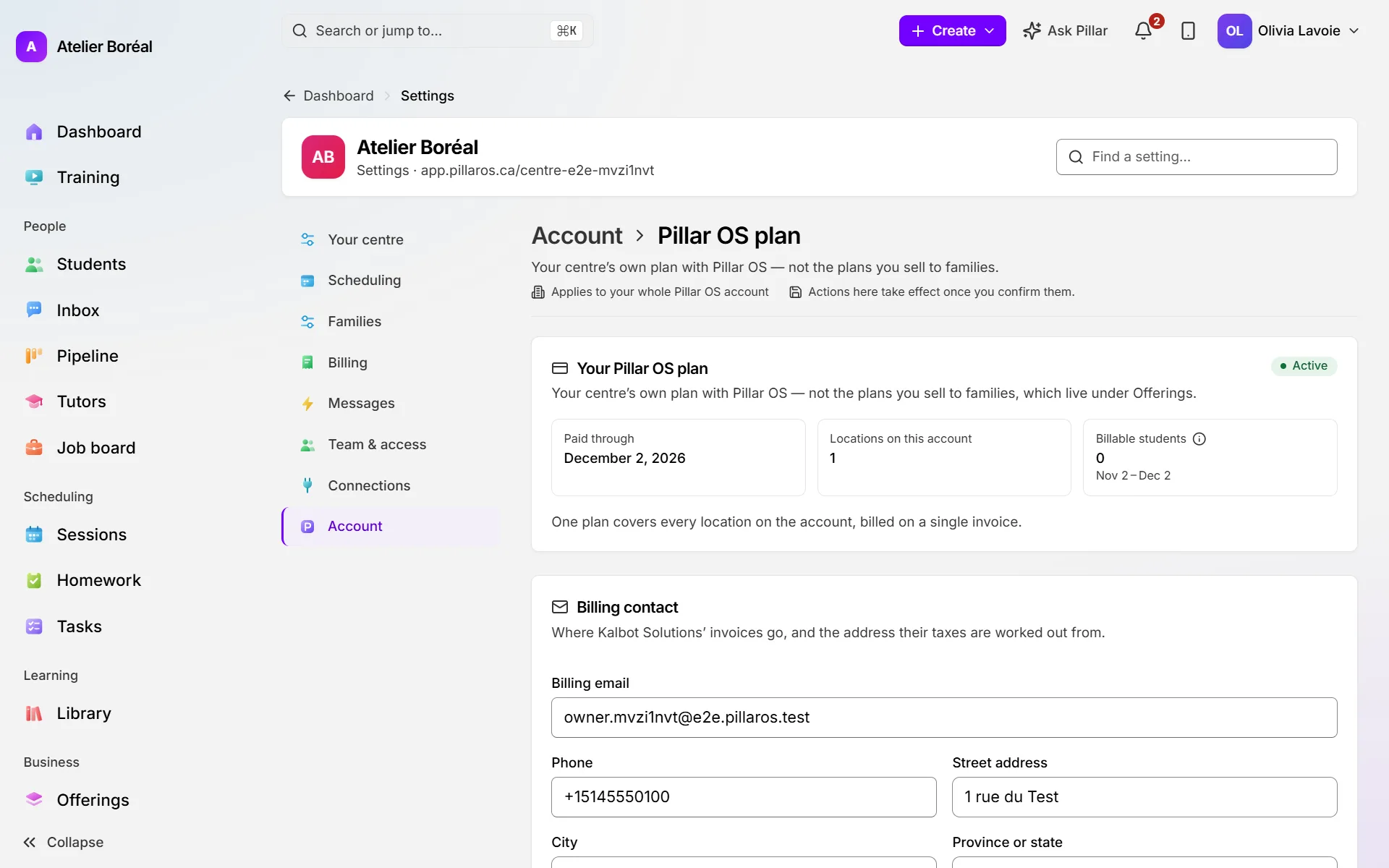
- Open Settings › Account › Pillar OS plan.
- Under Your Pillar OS plan, read the status: Active, Free trial, Ending soon or Ended.
- Read Paid through (or Trial ends during a trial) and Locations on this account.
- Read Billable students: the number your plan is priced on for the current billing cycle.
Pay or download a Pillar OS invoice
- Under Your invoices, find the invoice. Each one says whether it is due, overdue, paid, refunded or void.
- Click Pay to pay it, or PDF to download it.
Add or update the card you pay with
- Make sure a Billing email is filled in under Billing contact. A card can’t be added without one.
- Under Card, click Add a card or Update card.
- Enter the card on the secure page that opens. It is charged from your next invoice.
Change your billing contact
- Under Billing contact, fill in Billing email, Phone, Street address, City, Province or state, Postal code and Country (2 letters).
- Click Save.
Cancel your plan
- Under Cancel your Pillar OS plan, choose an answer in Why are you leaving?.
- Add a note in Anything else we should know? (required if you chose Other).
- Click Cancel plan and confirm.
Changed your mind? Click Keep my plan on the same page any time before your paid-through date, and the cancellation is undone.
Did this answer your question?
Thank you. It helps us know what to write better.
Still stuck?
Support is included with every plan. Write to us and a person replies.
Contact support