Set your prices and billing rules
Set what a session costs, when families are billed, what a late cancellation or no-show costs, and how families pay you by hand.
 Written by the Pillar OS team Updated November 2, 2026
Billing rules decide what a session costs, when families are billed, what happens when plans change and how families pay you. Set them once when you start, and come back when your prices change.
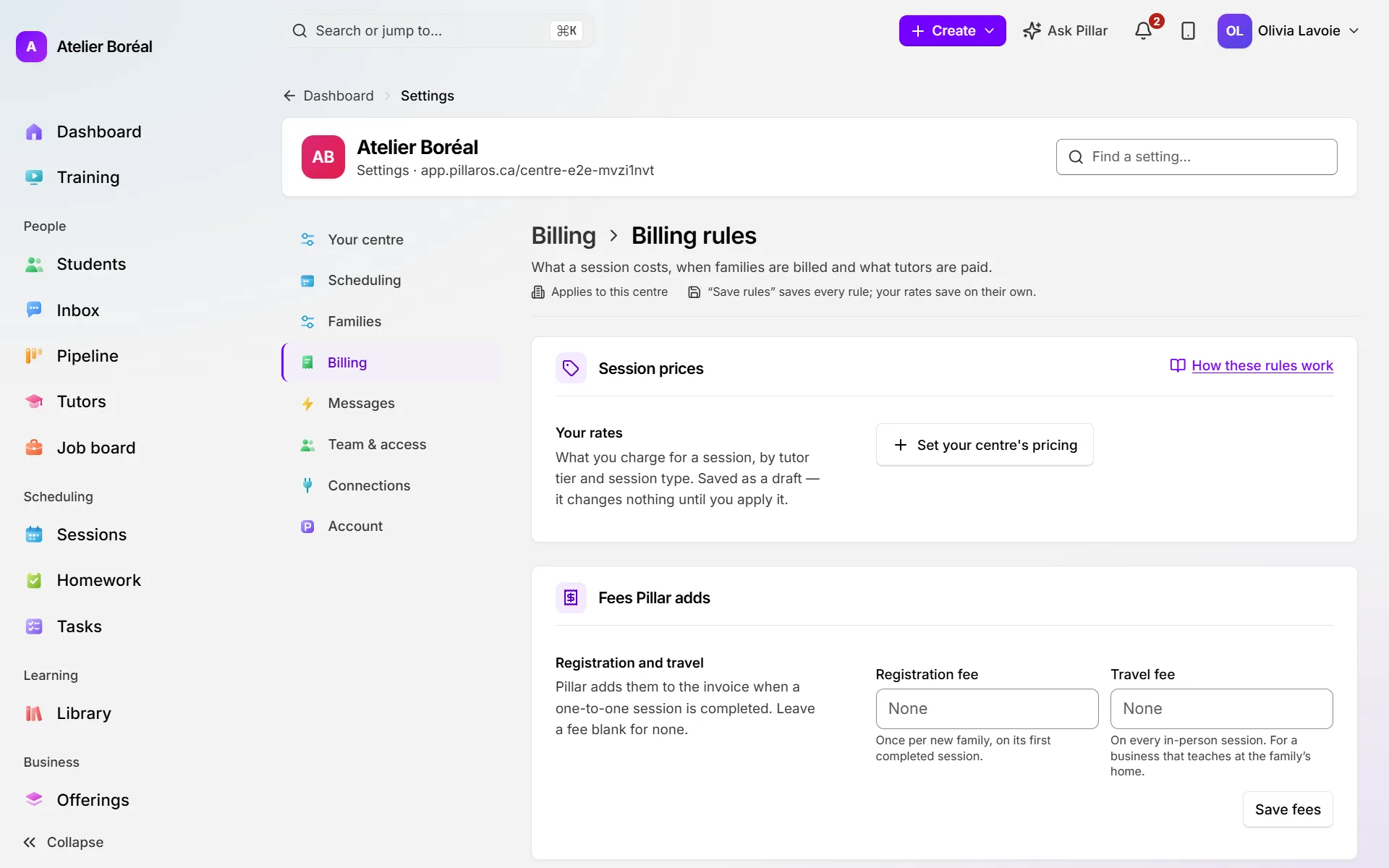
Set your session prices
Where: Settings › Billing › Billing rules
- Under Session prices, click Set your centre’s pricing.
- Fill in the top-left box to charge one rate everywhere. The other boxes (by tutor tier, online or in person, individual or group) are optional and follow the first one. Amounts are per hour, per student.
- Click Save pricing to keep a draft, or Apply changes and confirm to put the prices in force now.
Choose where a session’s price comes from
Where: Billing rules › How you invoice
- Pick Session price comes from: the student’s own rate, the tutor’s hourly rate times the session length, a single-session offering, one flat rate for every session, or your centre’s pricing.
- Fill in the field that choice asks for, for example Flat rate per session.
- Click Save rules.
Bill families weekly, monthly or after each session
Where: Billing rules › Invoicing rhythm
- Under When families are billed, choose After the session (post) or Ahead of the session (pre).
- Under How sessions are invoiced, choose Off, Per session, Weekly or Monthly, then the day it asks for.
- Set the Payment terms if you need them.
- Click Save rules.
Charge for late cancellations and no-shows
Where: Billing rules › When plans change › Cancellations and no-shows
- Set the Cancellation notice, in hours.
- Choose the No-show outcome and the Late cancellation outcome: Charge the session, No charge or, with credits on, Charge, and give a makeup credit.
- Click Save rules.
To cancel one lesson, see Cancellations and no-shows.
Add a registration or travel fee
Where: Billing rules › Fees Pillar adds
- Type a Registration fee or a Travel fee (like 25 or 25.50). Leave it blank for none.
- Click Save fees.
Tell families how to pay you by hand
Where: Billing rules › How families pay you
- Choose How most families pay.
- Under Instructions for paying by hand, fill in the Interac e-Transfer address, the message to include, and what to know about Cash, Cheque or Anything else, in English and in French.
- Click Save rules.
Did this answer your question?
Thank you. It helps us know what to write better.
Related articles
Still stuck?
Support is included with every plan. Write to us and a person replies.
Contact support