Connect ChatGPT or Claude to Pillar
Add Pillar to Claude or ChatGPT so you can ask about your centre and prepare changes from the AI app you already use.
 Written by the Pillar OS team Updated November 2, 2026
If you already work in ChatGPT or Claude, you can connect it to your centre. It can then read what you can see in Pillar and prepare changes, while anything that reaches a family or a tutor still waits for your approval in Pillar. It uses the AI app’s custom connector feature, which depends on the plan you have with that app.
Copy your centre’s address
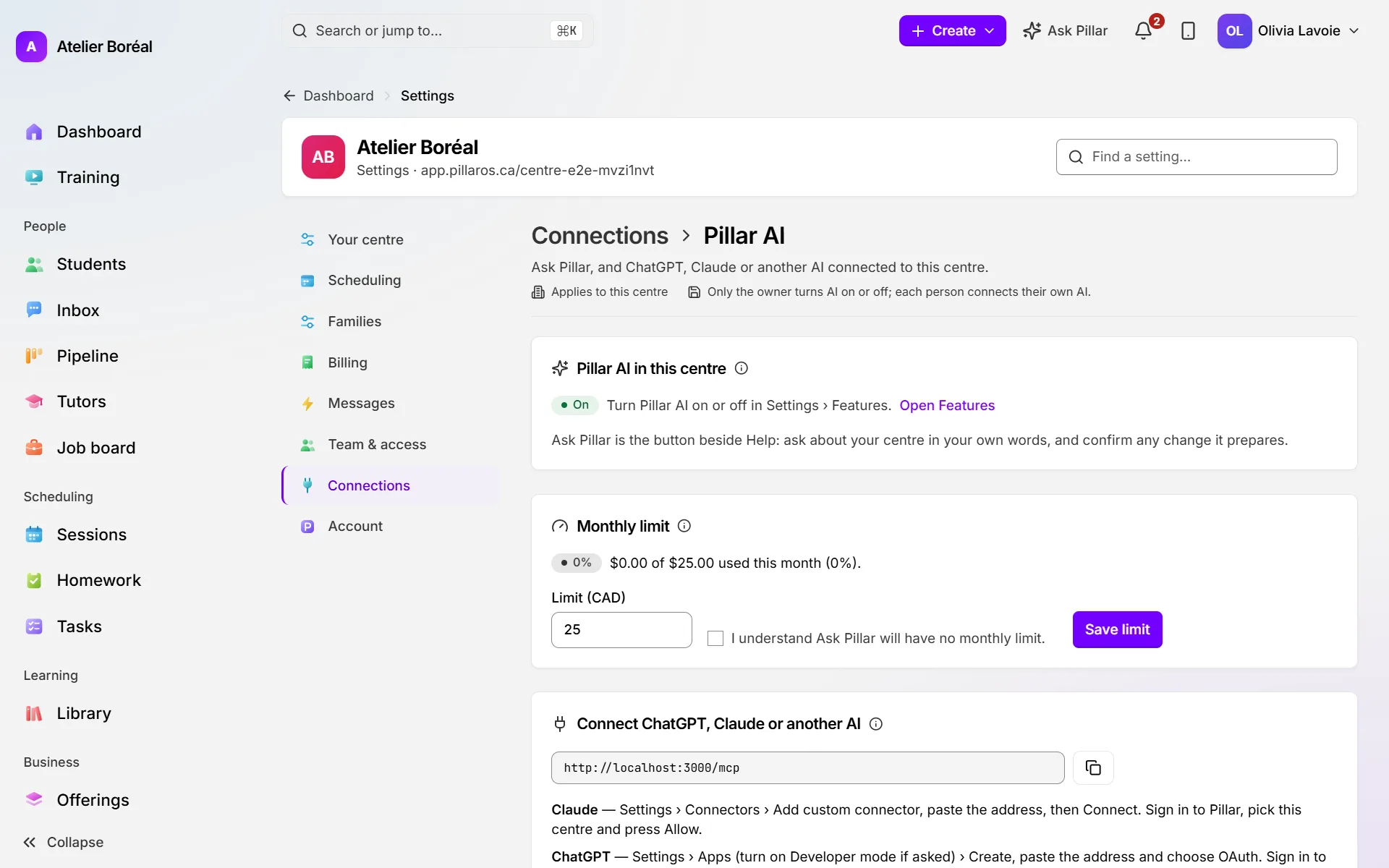
Where: Settings › Connections › Pillar AI
- Make sure Pillar AI is on in Settings › Features (group Team). It is off until the owner, or an admin allowed to edit Settings, turns it on. See Ask Pillar.
- Open Settings, then Pillar AI.
- Under Connect ChatGPT, Claude or another AI, copy the address shown.
Only owners and admins of the centre can connect an AI app. Tutors can’t.
Connect Claude
Where: in Claude
- Go to Settings › Connectors › Add custom connector.
- Paste the address, then click Connect.
- Sign in to Pillar, choose your centre under Which centre? and press Allow.
- Pillar takes you back to Claude. If nothing happens, press Continue.
Connect ChatGPT
Where: in ChatGPT
- Go to Settings › Apps. Turn on Developer mode if ChatGPT asks.
- Click Create, paste the address and choose OAuth.
- Sign in to Pillar, choose your centre and press Allow.
- Pillar takes you back to ChatGPT. If nothing happens, press Continue.
Did this answer your question?
Thank you. It helps us know what to write better.
Related articles
Still stuck?
Support is included with every plan. Write to us and a person replies.
Contact support