Mark sessions done and take attendance
Mark one lesson, many lessons or the whole day as done, take attendance for a class, and get a morning reminder of what is left to mark.
 Written by the Pillar OS team Updated November 2, 2026
A session that has ended isn’t invoiced, and its tutor isn’t paid for it, until it is marked done. Pillar gives you several ways to do it: one at a time, many at once from the list, or every waiting one from your dashboard.
Mark one lesson done
Where: open the session
- Click Mark completed. Owners and admins see what happens to the family’s money: credits taken, or what is billed and when.
- To change the price, click Change this invoice, or choose Don’t bill.
- Confirm.
- Click Add notes to write the session notes.
Mark many lessons done from the list
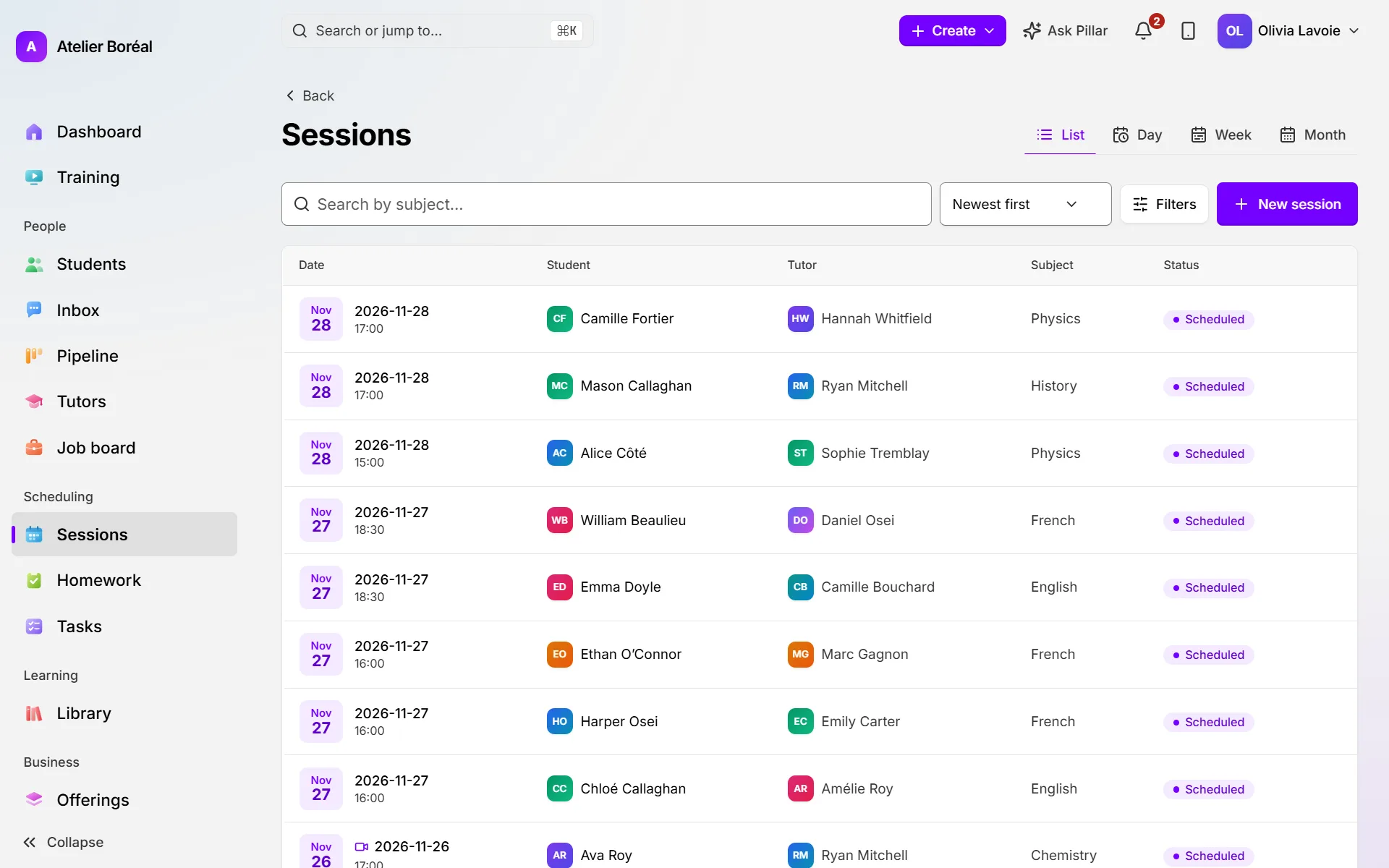
Where: Scheduling › Sessions, tab List
- Tick the box beside each session, or the box in the header to tick the whole page.
- Click Mark N sessions completed in the bar that appears.
- Review the list. Owners and admins also see what each family will owe.
- Confirm.
Settle everything from the dashboard
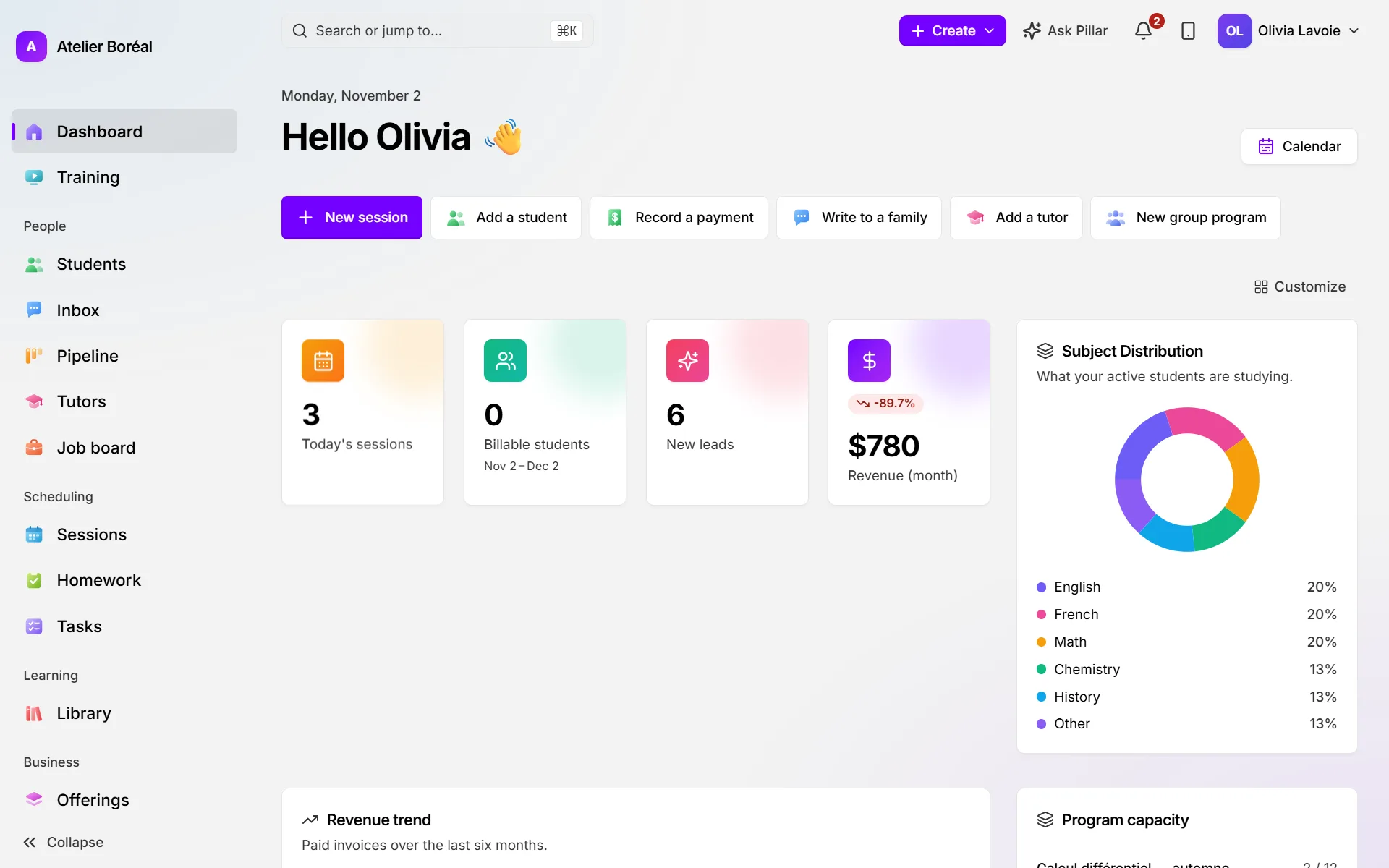
Where: Dashboard
- When sessions are waiting, a tile reads N unsettled sessions. Click Click here to settle.
- Untick any that didn’t happen. They wait for you to cancel them or record a no-show.
- Click Mark N done now to finish straight away, or go through the next steps: notes (optional, kept with each session) and What families owe.
- Confirm with Mark N done. An Undo appears if you need to take it back.
Get a reminder each morning
Where: your name or photo in the account menu, then My profile
- Under Sessions to mark, each morning, pick an hour (or Off).
- Click Save.
On a day with sessions to mark, you get one email at that hour. Its Mark them done button opens Pillar on those sessions, on your phone or your computer. Nothing is sent on a day with nothing to mark.
Take attendance for a class
Where: open the class’s session, under Complete this session
- Mark each student Present or Absent, or use Mark all present / Mark all absent.
- For each absence, choose What this absence costs.
- Click Next to Learning outcome, then Review & complete.
- Click Complete session.
To fix a mark afterwards, use Mark present or Mark absent on the roster. If a credit was already charged for that absence, re-open the session instead (see Cancellations and no-shows).
Did this answer your question?
Thank you. It helps us know what to write better.
Related articles
Still stuck?
Support is included with every plan. Write to us and a person replies.
Contact support