Turn features on or off
Hide the parts of Pillar OS your centre doesn't use, and turn on Two parents or Pillar AI, from one Features page.
 Written by the Pillar OS team Updated November 2, 2026
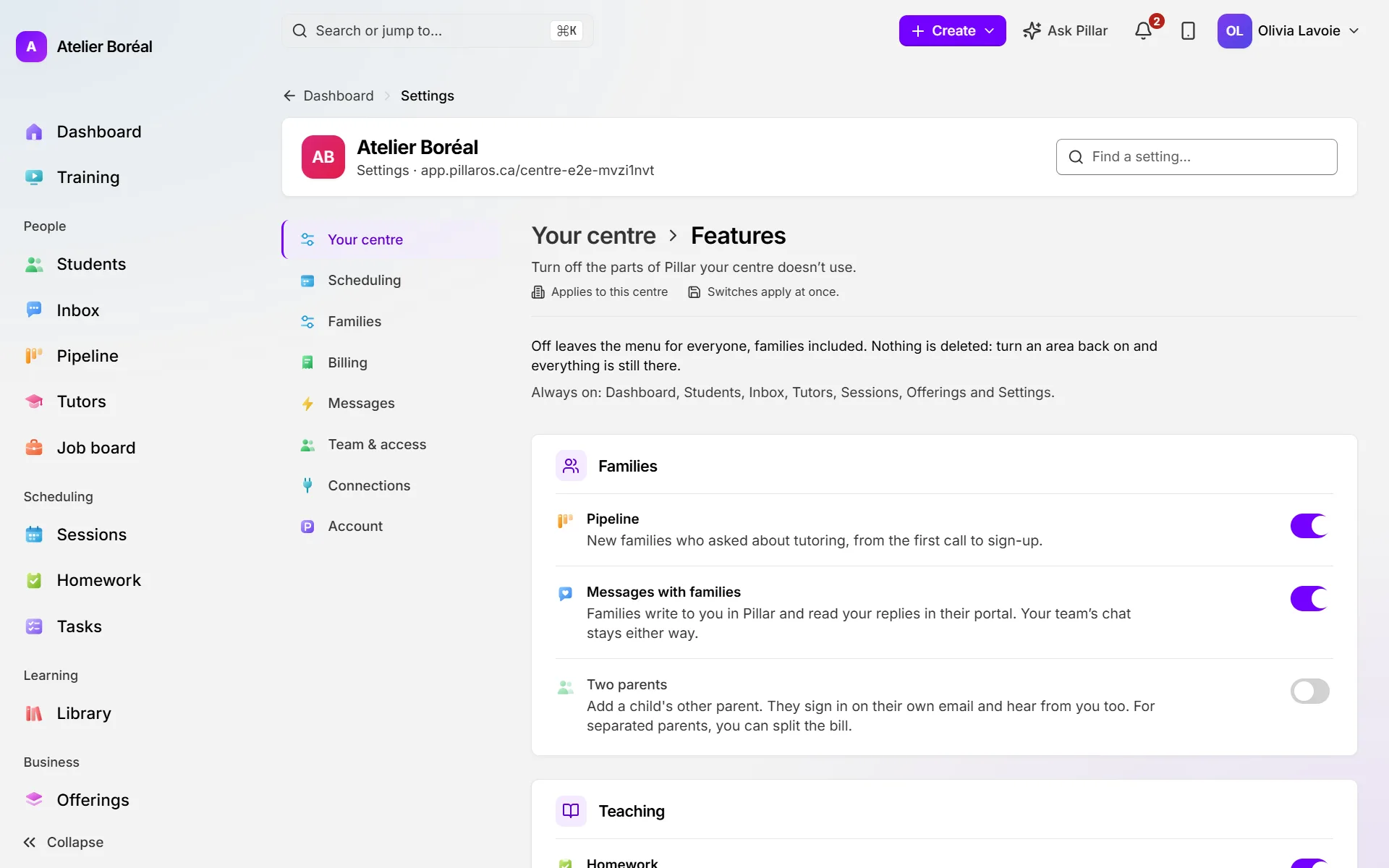
Features lets you turn off the parts of Pillar your centre doesn’t use, so the menu shows only what you need. It is also where you turn on the two areas that start off: Two parents and Pillar AI.
Turn an area off
Where: Settings › Your centre › Features
- Find the area in its group: Families, Teaching, Team or Money and reports.
- Click its switch.
- For most areas, a popup titled Turn off …? explains what will happen.
- Click Turn it off to confirm, or Cancel.
Turn an area back on, or turn on Two parents or Pillar AI
Where: Settings › Your centre › Features
- Find the area. Two parents is under Families; Pillar AI is under Team.
- Click its switch. It turns on at once, without a popup.
What you can switch
- Families: Pipeline (new families from first call to sign-up), Messages with families (families write to you in Pillar), Two parents (a child’s other parent, with their own sign-in and, for separated parents, a split bill).
- Teaching: Homework, Library (courses, materials and knowledge base), Group programs (classes with several students and their Community page).
- Team: Job board, Tasks, Tutor pay (payslips and each tutor’s My earnings), Training (short videos for your team), Pillar AI (Ask Pillar, and connecting ChatGPT or Claude; shown only when Pillar offers it).
- Money and reports: Billing (invoices, payments and session credits), Costs, Analytics.
Dashboard, Students, Inbox, Tutors, Sessions, Offerings and Settings are always on and are not listed.
Did this answer your question?
Thank you. It helps us know what to write better.
Related articles
Still stuck?
Support is included with every plan. Write to us and a person replies.
Contact support