Write to families from the Inbox
Reply to a parent by email or in-app chat, start a new conversation, email several families at once and check that it arrived.
 Written by the Pillar OS team Updated November 2, 2026
Every conversation with a family lives in the Inbox: the emails you send, the in-app chat, and the families’ replies. Use it to answer a parent, write to a family first, or send one email to many families.
Reply to a family
Where: People › Inbox
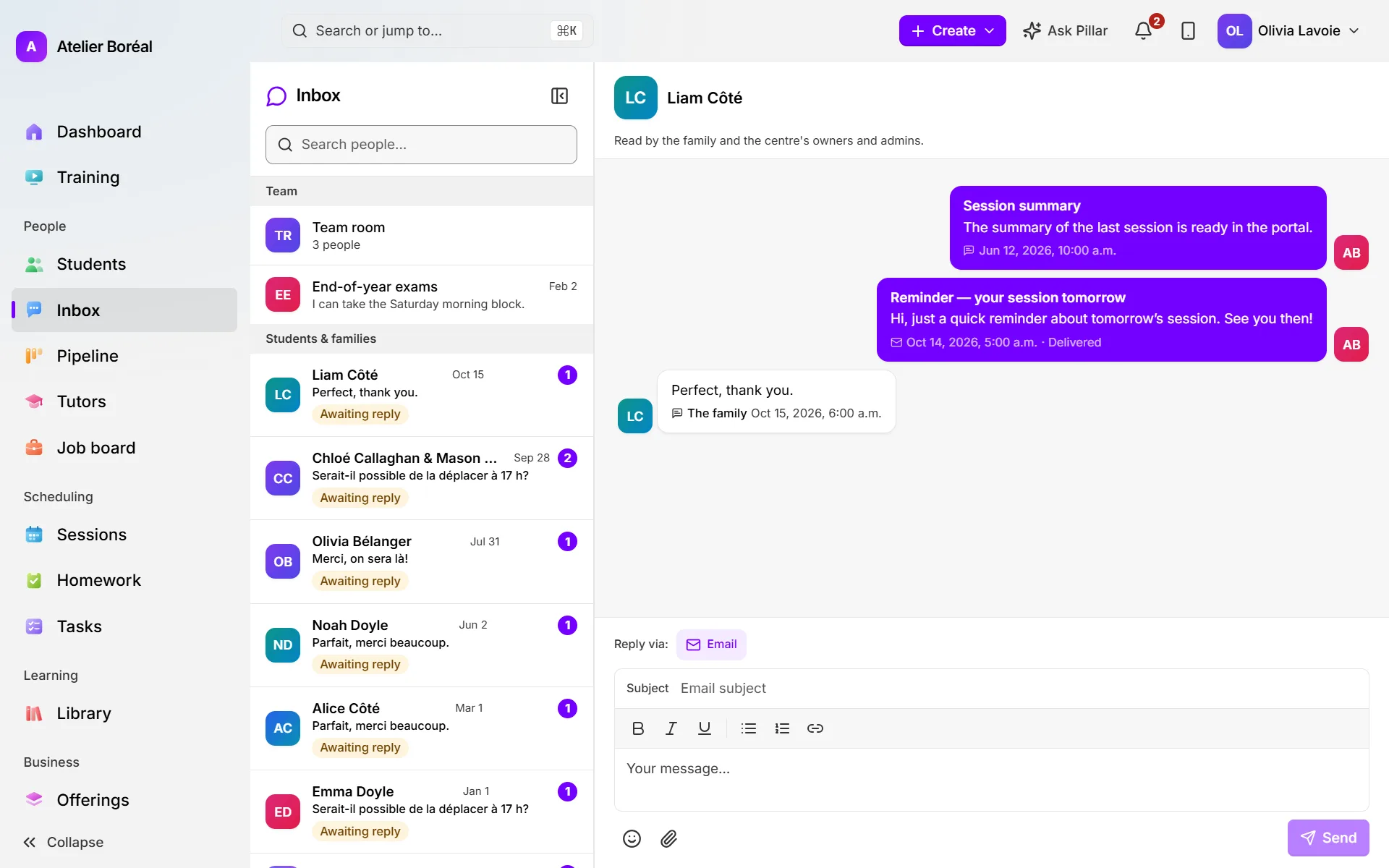
- Under Students & families, click the family. Conversations waiting on you are marked Awaiting reply.
- If the family has more than one conversation (one with the centre and one with a tutor, for example), pick it with the tabs at the top.
- Next to Reply via:, choose Email or In-app chat.
- For an email, fill in the Subject. You can use bold, italic, lists and Insert link.
- Write your message, add a file with Attach a file if needed (up to 25 MB), and click Send.
Write to a family first
Where: People › Inbox
- Type a parent’s or a student’s name in Search people….
- Click them. Someone you have never written to appears under Start a conversation.
- Choose Email or In-app chat, write your message and click Send.
From a student’s page, the Message button at the top opens the same conversation.
Email several families at once
Where: People › Students, in the List view
- Switch the view to List.
- Tick the students whose families should get the email (or Select all for the page).
- Click Message in the bar that appears.
- Write a Subject and a Message, then click Send.
- Read the result: Pillar says how many families got it, and how many did not.
Each family gets the email once, even with two children at your centre, and it is kept in that family’s conversation.
Check that a message arrived
- Open the family’s conversation.
- Look under each message you sent: it says Delivered, failed or reported as spam.
- For a bounced email, read the reason shown (for example, the address does not exist or the mailbox is full), correct the email on the student’s page, and send again.
Did this answer your question?
Thank you. It helps us know what to write better.
Related articles
Still stuck?
Support is included with every plan. Write to us and a person replies.
Contact support