Late payments and reminders to pay
See who owes you, and have Pillar remind families about unpaid invoices, retry a saved card and send overdue notices on the days you choose.
 Written by the Pillar OS team Updated November 2, 2026
Pillar can remind families about unpaid invoices on the days you choose, try a saved card again and send overdue notices. Reminders to families are off until you turn them on.
See who owes you
Where: sidebar › Billing
- Read Outstanding at the top: what has been invoiced and not paid.
- Click Filters and pick Pending (or Failed for card payments that didn’t go through).
- Read the count line above the list: how many invoices and how much in all.
- Click a row to open the invoice.
Turn on reminders to pay
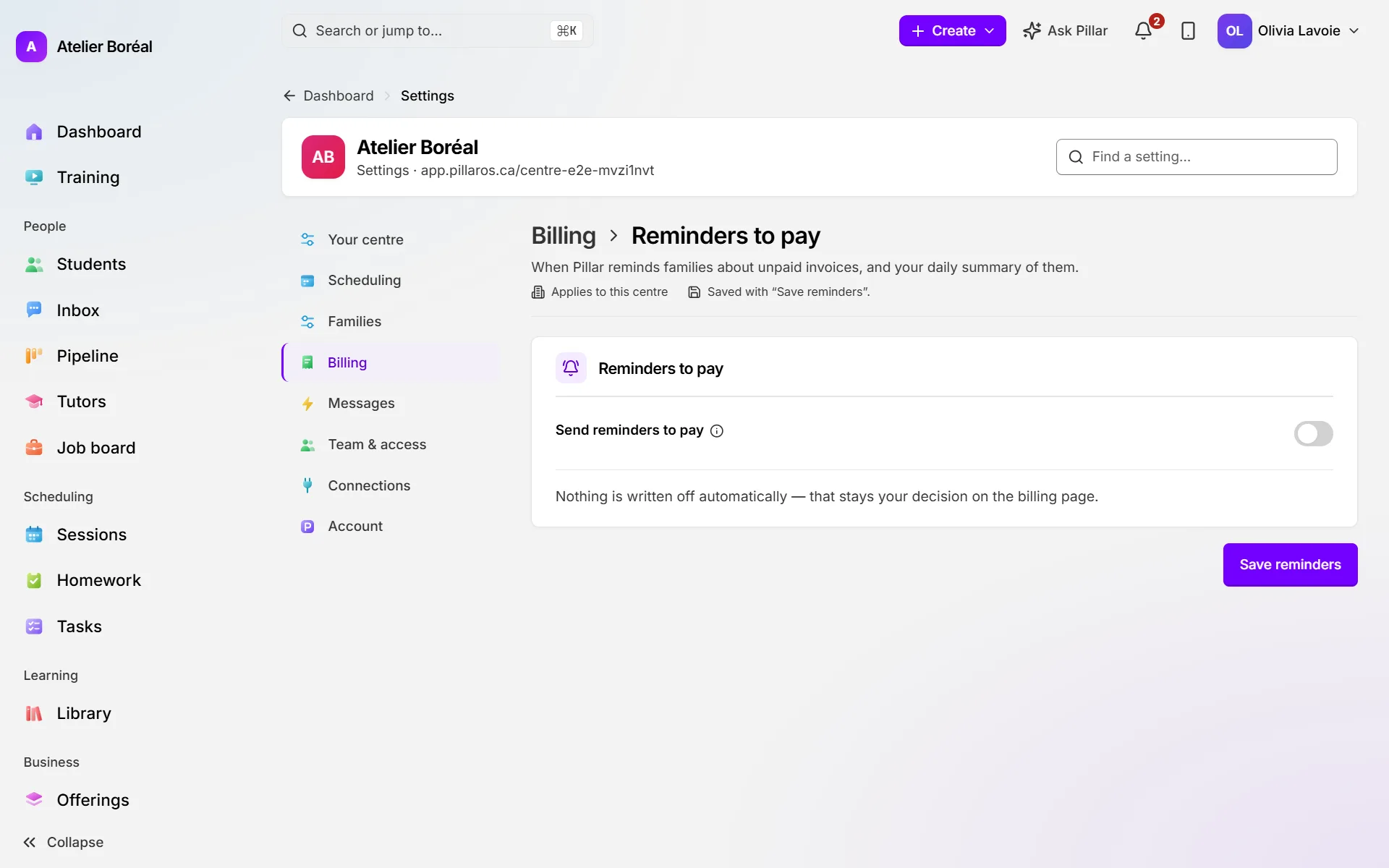
Where: Settings › Billing › Reminders to pay
- First read the wording of the Payment reminder and Overdue invoice messages under Settings › Automated messages. They go out in each family’s language.
- Turn on Send reminders to pay.
- Click Save reminders.
Choose the days reminders go out
Where: Reminders to pay › The schedule › Default schedule
- For each step (Reminder, Retry the saved card, Overdue notice), switch it on or off.
- Enter its days from the due date: negative before it, 0 on the day, positive after.
- To send more overdue notices, enter up to three more days under More overdue notices (optional).
- Click Save reminders.
Give weekly or monthly invoices their own schedule
Where: Reminders to pay › The schedule
- Click the Per session, Weekly or Monthly tab.
- Switch on its own schedule (for example Its own schedule for weekly invoices) and set its days.
- Or pick a schedule in Copy from, click Copy, then change what you need.
- Click Save reminders.
Get a morning list of overdue invoices
Where: Reminders to pay, with Send reminders to pay on
- Turn on Morning digest to owners and admins.
- Enter the Digest hour (0 to 23, your local time).
- Click Save reminders.
The digest is one email a day listing every overdue invoice, sent only on days there is one.
Did this answer your question?
Thank you. It helps us know what to write better.
Related articles
Still stuck?
Support is included with every plan. Write to us and a person replies.
Contact support