Give a new student to a tutor (Job board)
Post a new student on the Job board, let qualified tutors apply, and assign the one you choose, with their pay rate for that student.
 Written by the Pillar OS team Updated November 2, 2026
The Job board hands new students to the tutors already on your team. You post a “job” for a new family, the tutors who teach that subject and grade see it and apply, and you pick one. It is not for hiring: jobs show only inside Pillar, to your own tutors, never on your website or a job site.
Post a new student
Where: People › Job board
- Click Post a job.
- Pick the Lead the job is for, or choose the general posting with no lead. A lead fills in its subject and grade when those are blank.
- Type a Title (required), then the Subject, Grade, Description and Schedule.
- Choose the Format: Either, Online or In person. If you like, set an Hourly pay rate and a Closes on date.
- Under Who can see it, choose Matching tutors only or All tutors.
- Click Post a job. The job’s page opens.
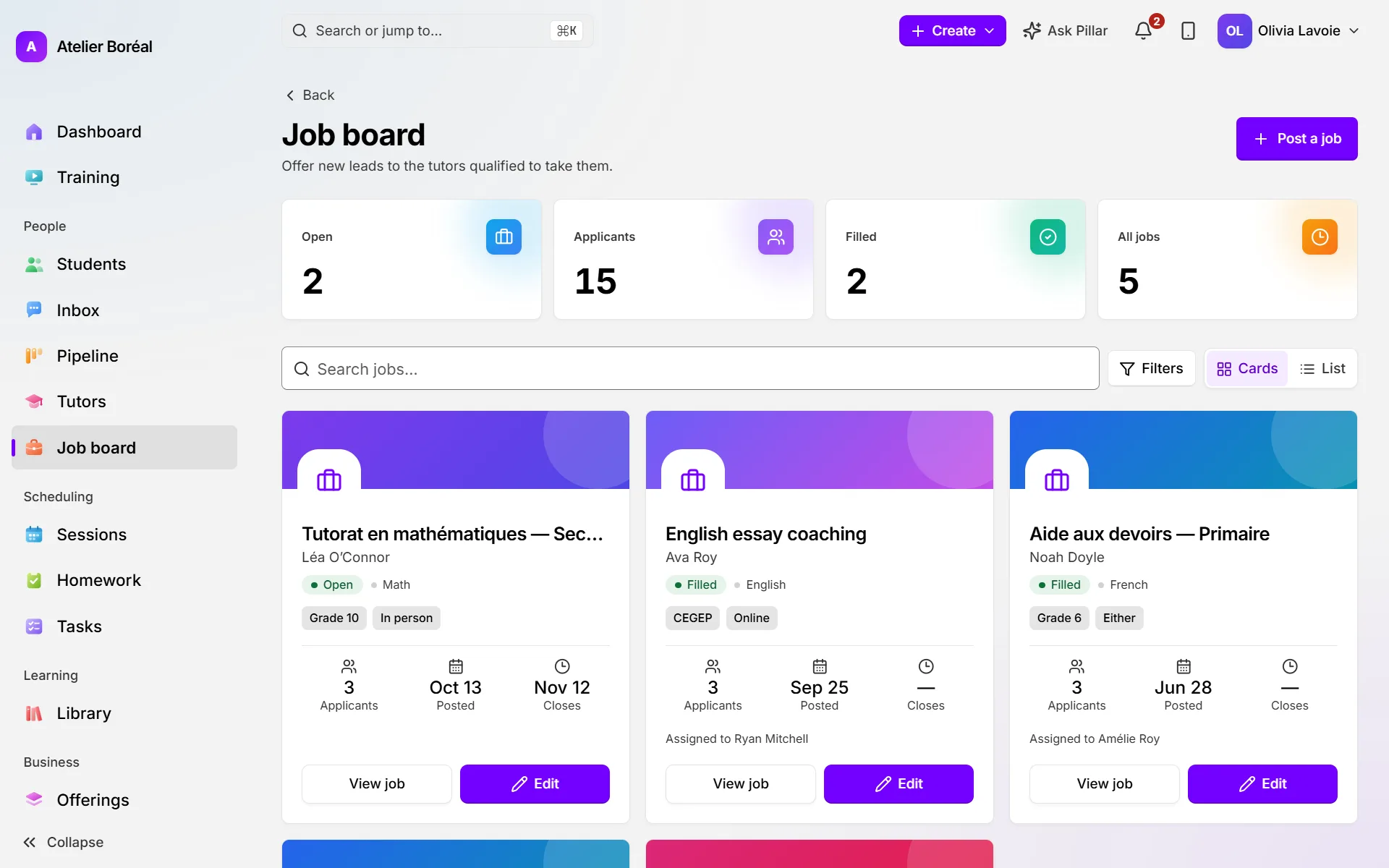
Apply as a tutor
Where: People › Job board (tutor’s view)
- On an open job’s card, click Apply.
- If you like, write a few words under Why you (optional).
- Click Apply. Your applications are listed under My applications with their status: Applied, Accepted or Not selected.
- While it still says Applied, you can Withdraw it.
Choose the tutor
Where: People › Job board › the job
- Under Applicants, read each tutor’s subjects, grades and message.
- Click Assign under the tutor you choose.
- To give it to someone who didn’t apply, use Assign a tutor: pick from Choose a tutor (tutors who fit are listed first, Show all tutors lists everyone active), then click Assign.
- To pay a different rate for this student, type it in Hourly pay rate and click Save rate. Leave it blank to use the tutor’s profile rate.
Did this answer your question?
Thank you. It helps us know what to write better.
Related articles
Still stuck?
Support is included with every plan. Write to us and a person replies.
Contact support