Ask Pillar: ask in your own words
Turn on Ask Pillar, ask about your centre in plain words, have it prepare changes you confirm, and set a monthly spending limit.
 Written by the Pillar OS team Updated November 2, 2026
Ask Pillar answers questions about your centre (“Who hasn’t paid this month?”) and prepares changes for you (“Move Ethan’s lesson tomorrow to 4 pm”). It is off until someone turns it on, and it changes nothing until you press Do it.
Turn it on
Where: Settings › Features
- Open Settings, then Features.
- Find Pillar AI in the Team group.
- Click its switch. It turns on at once, for your whole centre.
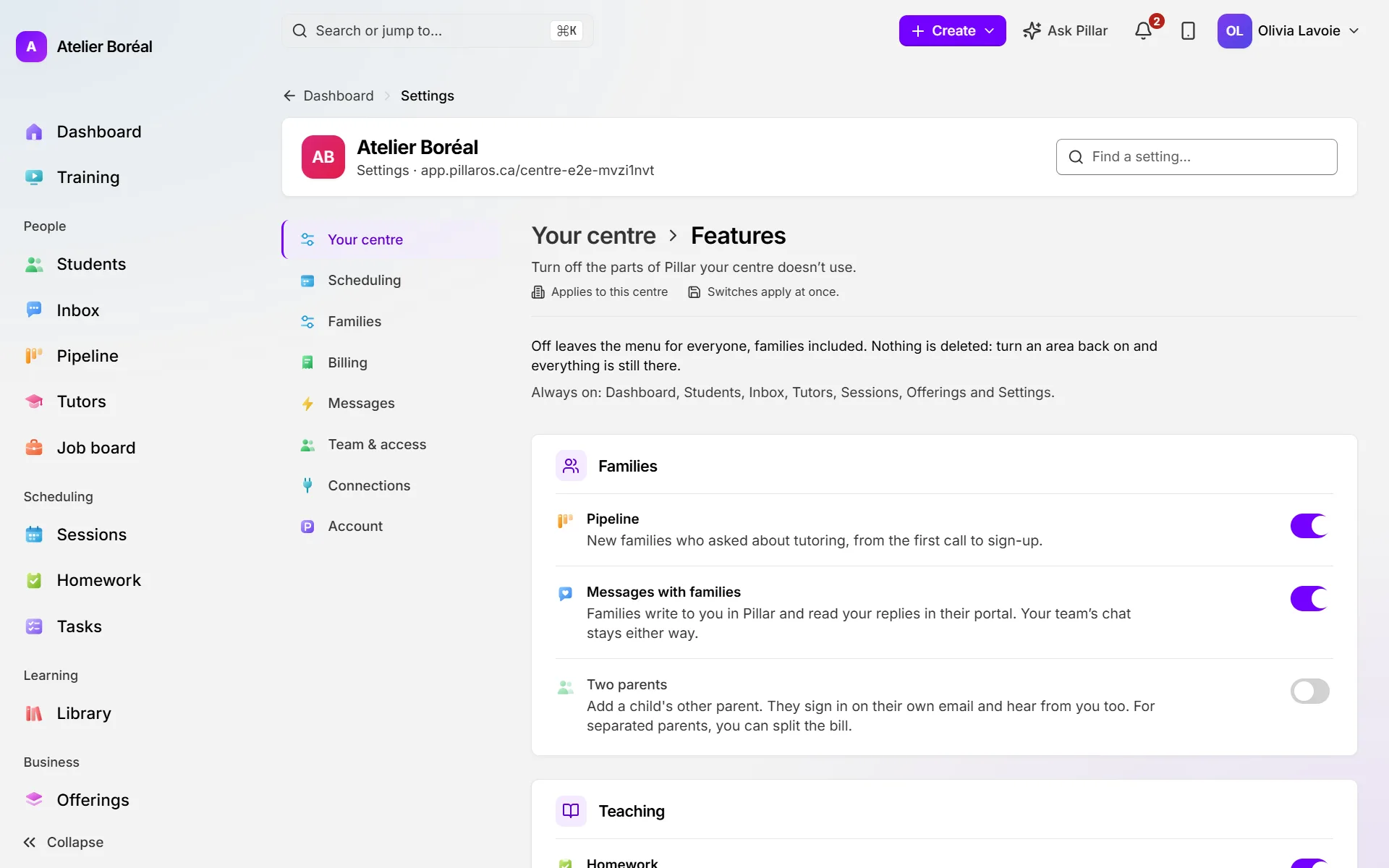
The owner, or an admin allowed to edit Settings, can do this. The Pillar AI row appears only while Pillar offers it to your centre.
Ask a question
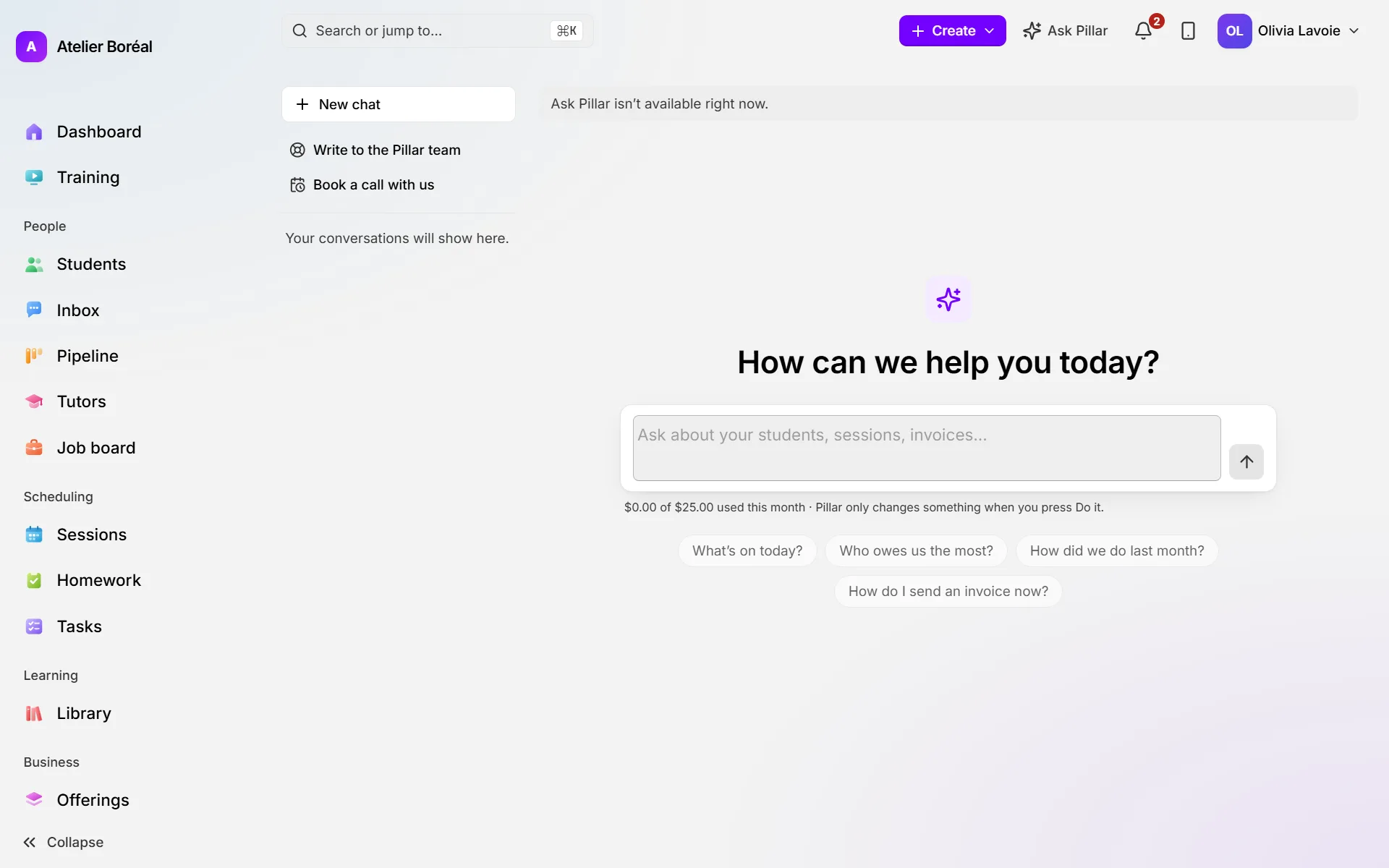
Where: Ask Pillar, at the top of every page
- Click Ask Pillar. A panel opens beside the page.
- Type your question under How can we help you today? and press Enter.
- Read the answer. It comes from your centre’s records (lessons, families, invoices, tutors, reports) and, for “how do I” questions, from Pillar’s own guide.
Have Pillar prepare a change
Where: Ask Pillar
- Ask for the change in your own words, for example “Give Harper the fractions worksheet, due at her next session”.
- Pillar shows a card that says exactly what will happen.
- Press Do it to make the change, or Not now to leave it.
Set a monthly spending limit
Where: Settings › Connections › Pillar AI › Monthly limit
- Type an amount in Limit (CAD), such as 25 or 40.50.
- Click Save limit.
- To have no limit, empty the box, tick I understand Ask Pillar will have no monthly limit. and click Save limit.
Only the owner can change the limit. Every centre starts at CA$25 a month.
Did this answer your question?
Thank you. It helps us know what to write better.
Related articles
Still stuck?
Support is included with every plan. Write to us and a person replies.
Contact support