Add tutors and your team
Add a tutor, invite them to sign in, set their weekly hours, invite an admin or co-owner, and choose what each role can see.
 Written by the Pillar OS team Updated November 2, 2026
Tutors are added from the Tutors page; owners and admins are invited from Settings. Adding a tutor does not send them anything: you invite them when you are ready.
Add a tutor
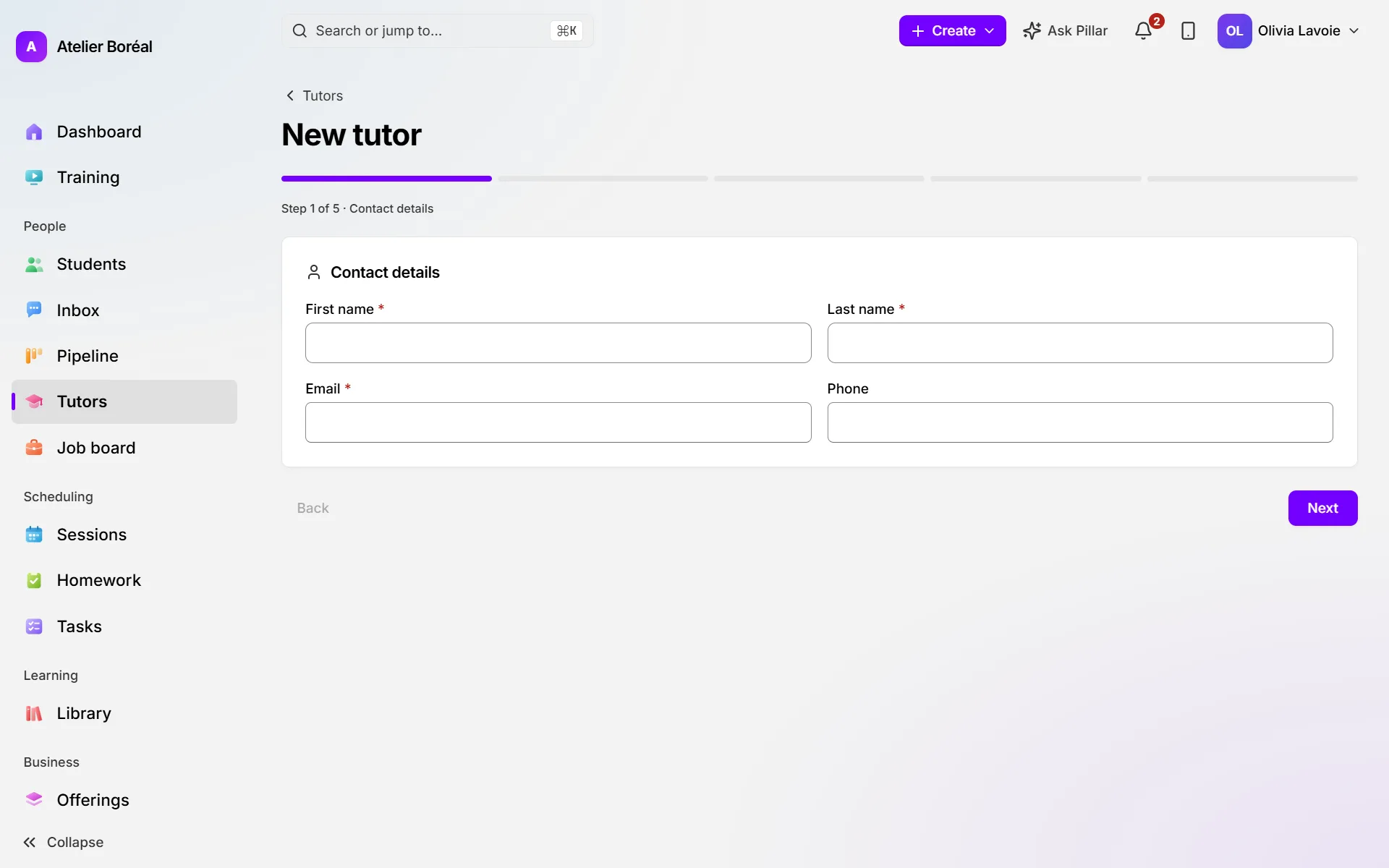
Where: People › Tutors › New tutor
- On Contact details, fill in the First name, Last name and Email (all three are required), and the phone if you have it. Click Next.
- On Teaching profile, tick their Qualification, add each subject and grade under Subjects and grades, and write the title line and short presentation under How families see them.
- On Booking & pay, choose the Format (Online, In person, Both). Under Compensation, choose How this tutor is paid and enter the rate. Under What families are charged, pick a Pricing tier or keep the centre rate.
- Add an address on Optional details if you want, then check the summary on Review & create.
- Click Create tutor. The tutor’s page opens.
Invite a tutor to sign in
Where: People › Tutors › the tutor’s name › Profile
- Under Portal access, click Invite to portal. The tutor gets an email to choose a password.
- If it doesn’t arrive, click Resend invite, or copy the activation link shown and send it yourself.
- Once they sign in, the page shows Portal linked.
Set a tutor’s weekly hours
Where: the tutor’s page › Availability
- Click Set hours (or Change hours).
- Choose the days and times they work, and save.
These hours decide which times families can book. By default tutors can also set their own hours from their calendar; to keep that in your hands, turn off Tutors manage their own availability in Settings › Scheduling › Booking rules.
Invite an admin or co-owner
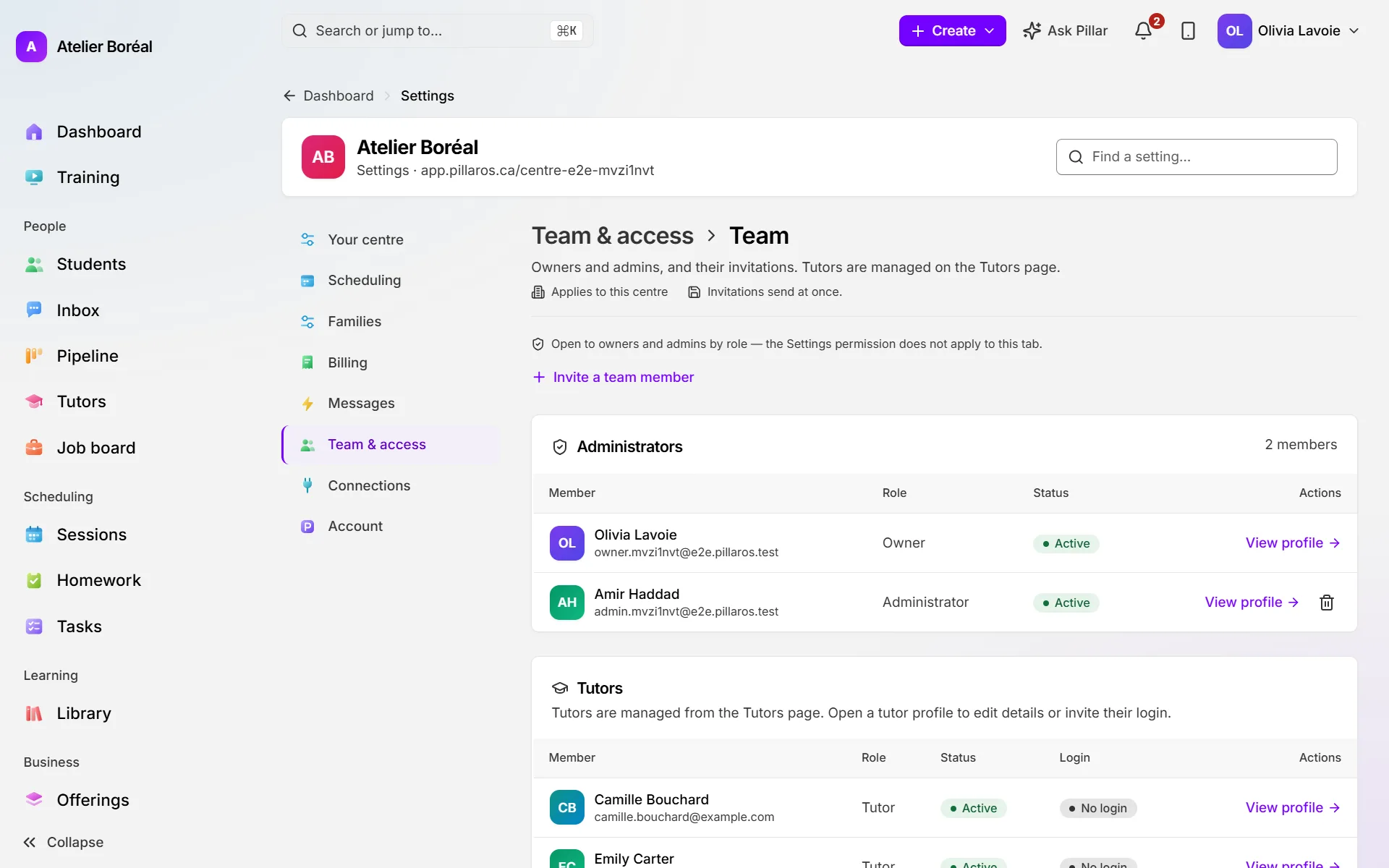
Where: Settings › Team & access › Team
- Click Invite a team member.
- Enter their Email (first and last name are optional).
- Choose the Role: Administrator, or Owner for a partner or co-owner (only an owner sees this choice).
- Click Send invitation. If the email doesn’t arrive, use Resend invite.
Choose what admins and tutors can do
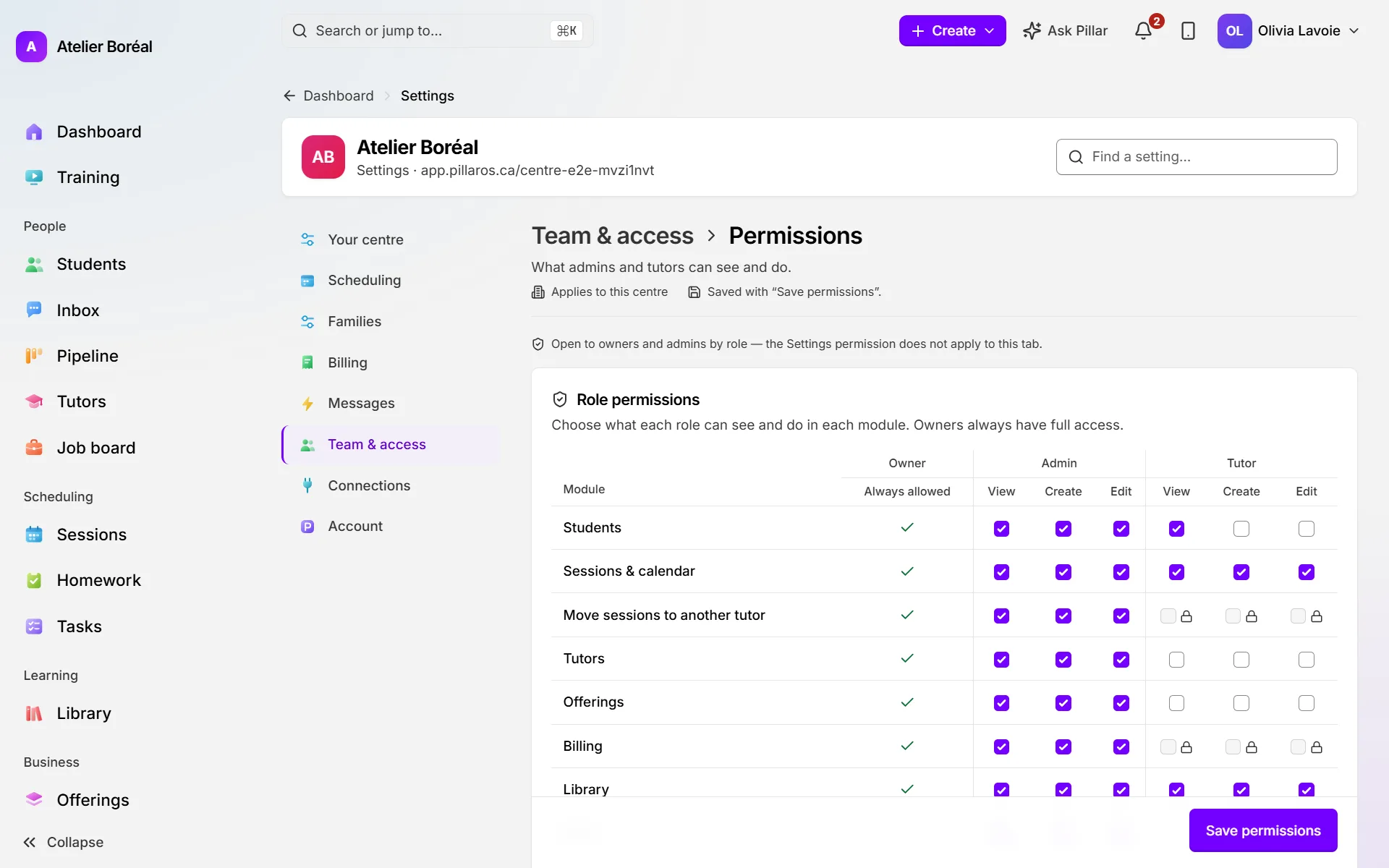
Where: Settings › Team & access › Permissions
- Under Role permissions, find the module (for example Students, Sessions & calendar or Billing).
- Under Admin or Tutor, tick or untick View, Create and Edit.
- Click Save permissions.
Did this answer your question?
Thank you. It helps us know what to write better.
Related articles
Still stuck?
Support is included with every plan. Write to us and a person replies.
Contact support