Invoices, payments and taxes
Record cash, cheque and e-Transfer payments, send a one-off invoice, void or correct an invoice, give a refund and turn on sales tax.
 Written by the Pillar OS team Updated November 2, 2026
Pillar emails each family its invoice. With a payment processor connected, the invoice carries a link to pay by card. Without one, it goes out with no pay link and the family pays the way your billing rules explain (Interac e-Transfer, cash or cheque). This article covers what you do once invoices are out.
Record a cash, cheque or e-Transfer payment
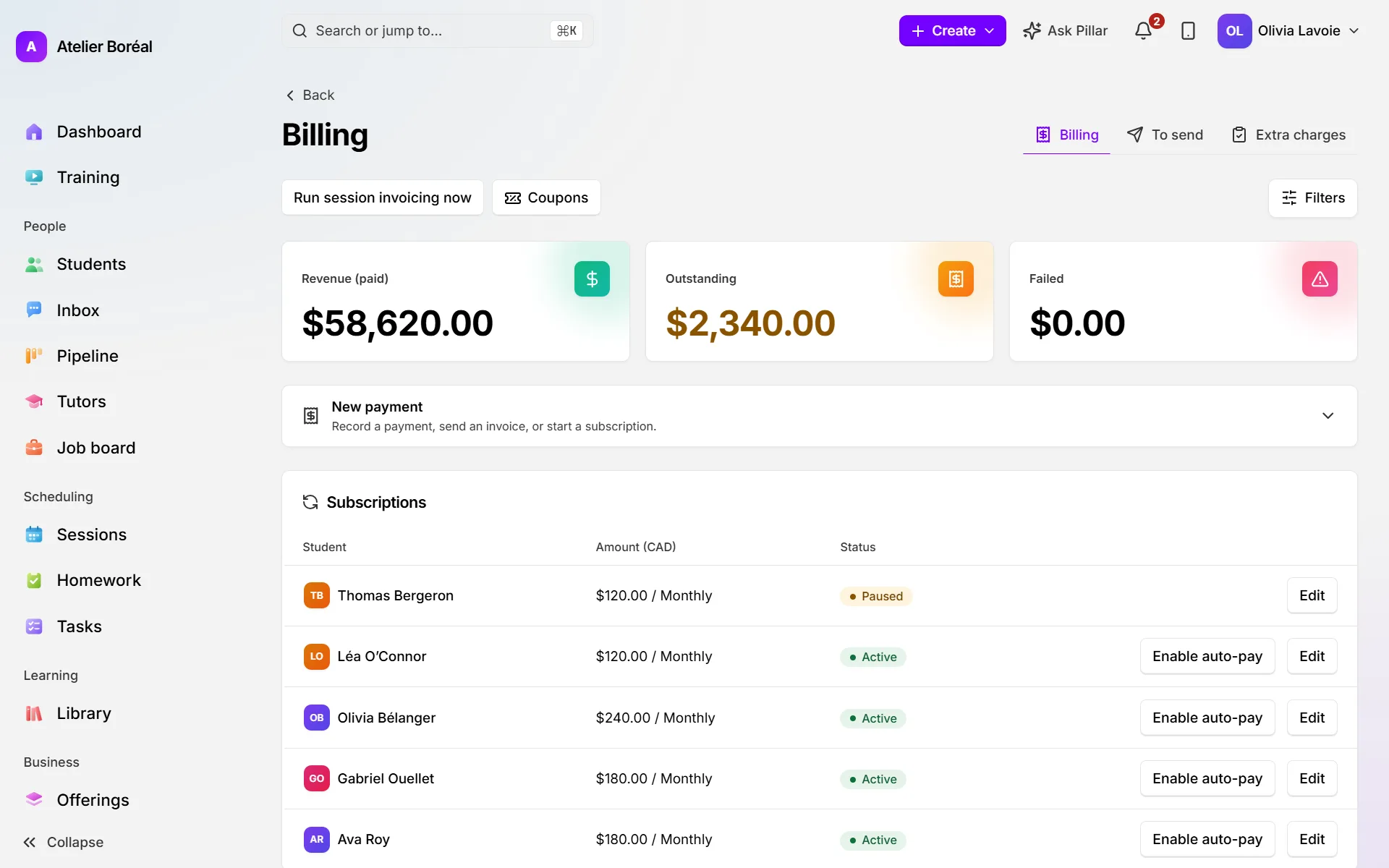
Where: sidebar › Billing › New payment
- Pick the Student, then type the Amount (CAD) and a Description.
- If the payment buys a credit pack or a program, choose it under Grants (optional).
- Choose the Payment method: Cash, E-transfer, Cheque, Credit card or Recorded outside Pillar OS.
- Click Record a received payment.
If the student has an unpaid invoice, a yellow box offers Mark this one paid so the payment settles that invoice.
Mark a waiting invoice as paid
Where: Billing › Recent payments
- Find the Pending row (use Filters › Pending to see only those).
- Choose how it was paid in the small list on the row.
- Click Mark as paid. Payment reminders for that invoice stop.
Send a one-off invoice
Where: Billing › New payment
- Pick the Student, then type the Amount (CAD) and Description. You can also tick approved items under Extra charges to add.
- Click Send invoice.
- If the family has a saved card, choose Charge the saved card now or Send an invoice to pay.
If the student already has lessons waiting in To send, a yellow box offers to send that invoice now instead.
Void or correct an unpaid invoice
Where: Billing › Recent payments, click the row
- To cancel it, click Void invoice, then Yes, void it.
- If it carries lessons or extra charges, choose Void, don’t bill, Void, bill later (they go back to To send) or Correct the invoice.
- To fix it instead, click Adjust invoice, change the Description, Due date or lines (Item, Unit price, Qty, Add a line), then click Issue the corrected invoice.
The old invoice is voided. The corrected one gets the next number and is emailed to the family.
Give a refund
Where: Billing › Recent payments, on a paid row
- Choose how to refund: Refund as credits (type the Credits to return), Refund money (back through your payment processor, in full or in part) or Record a refund (money you give back yourself, by cash or cheque).
- Click Confirm.
With Record a refund, Pillar records it, tells the family and takes back what the payment granted. A refund may also offer to remove the student from their remaining booked sessions.
Charge sales tax on invoices
Where: Settings › Billing › Payment processors
- Make sure your head-office address is filled in under Settings › Profile.
- Turn on Charge sales tax on invoices.
- Enter your GST/HST number and, in Québec, your QST number (Québec).
- Click Save tax settings.
Pillar can add sales tax only when this switch is on (with your address and numbers filled in) and a payment processor is connected. It is off until then.
Did this answer your question?
Thank you. It helps us know what to write better.
Related articles
Still stuck?
Support is included with every plan. Write to us and a person replies.
Contact support