Packages, plans and prices
Sell packs of prepaid sessions, monthly plans, drop-ins, programs and materials, then change a family's plan from one popup.
 Written by the Pillar OS team Updated November 2, 2026
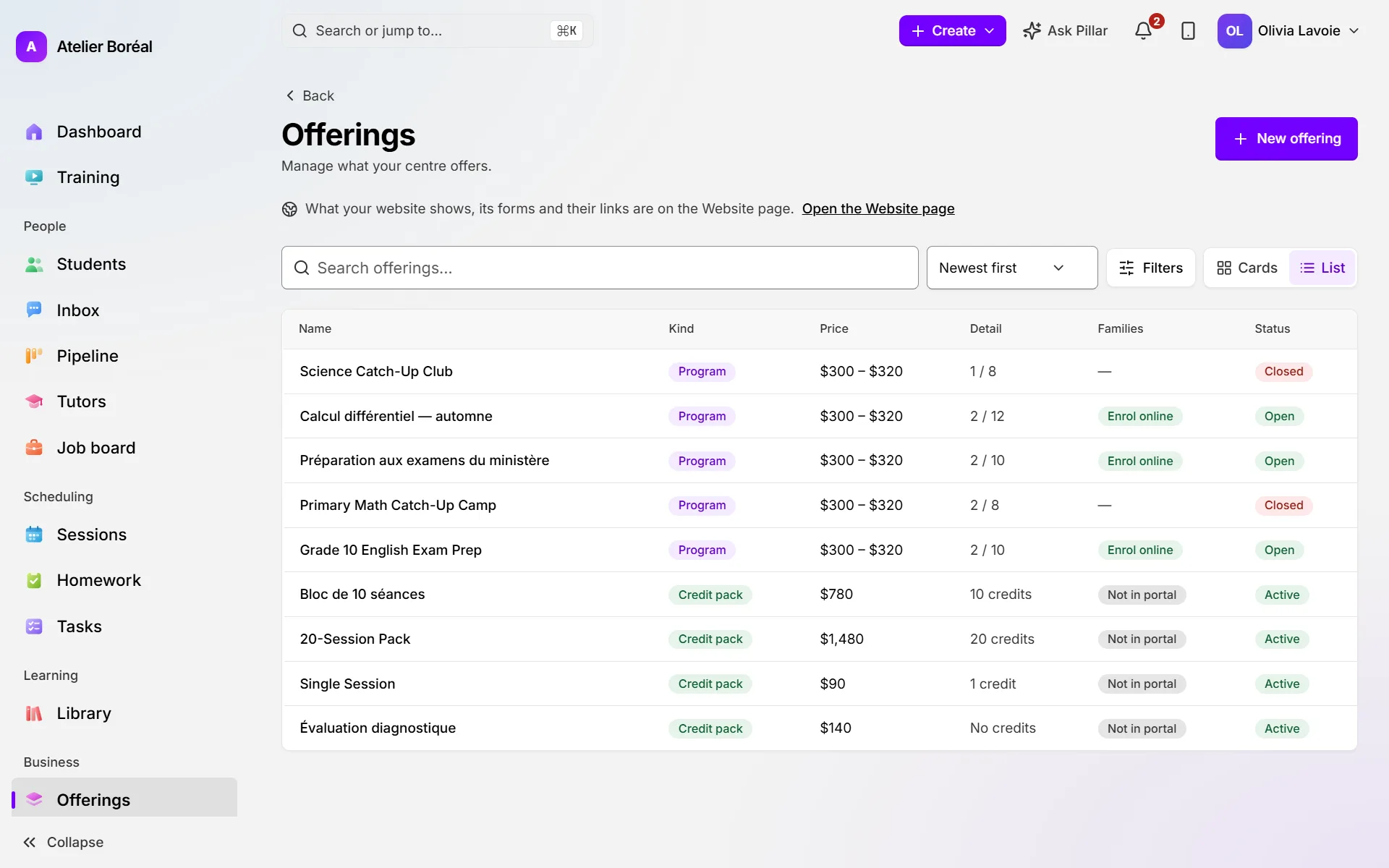
Everything a family can buy from your centre lives in Offerings: packs of prepaid sessions (credits), recurring plans, drop-ins, services, materials and programs. You set up what you sell once, then put each family on the pack or plan that fits.
Sell a pack of prepaid sessions
Where: sidebar › Offerings (in the Business group)
- Click New offering, then choose Credit pack.
- Under Details, type the Name (for example 10-session pack), the Pack price (CAD), the Credits in the pack and the Expiry (days). Leave the expiry blank if the credits never expire.
- Under Options, add bonus credits, choose what the pack can book and set tutor pay if you need to.
- Tick Show in the family portal if families may buy it online.
- Move through the steps with Next, then click Create credit pack.
Set up a monthly plan
Where: Offerings › New offering
- Choose Recurring plan.
- Type the Name and the Price per period (CAD), then pick the Billing frequency: weekly, every two weeks, twice a month, monthly or yearly.
- If you want, set a fixed billing day and the Number of payments. Blank means the plan runs until you cancel it.
- Click Create recurring plan.
Sell drop-ins, services, materials and programs
Where: Offerings › New offering
- Choose Drop-in for one session at a set Price (CAD), then click Create drop-in.
- Choose Service for work your tutors deliver, priced Per hour or Per service, then click Create service. Families don’t see services in the portal: your team books them as sessions.
- Choose Material to sell a library item once or by subscription, then click Create material.
- Choose Program for a group class, a camp or a workshop. See Group classes and camps.
Put a family on a pack or a plan
Where: the student’s page › Billing › Settings
- Under Who pays, choose who receives the invoices and holds the credits.
- Under How lessons are paid for, pick Invoice the lessons, Recurring plan or Refill credits automatically (Pillar buys a credit pack when the balance runs low).
- Choose the plan or the pack in the list that opens.
- Leave Price per lesson blank to use your centre’s prices.
- Click Save changes.
Change, pause or stop a family’s plan
Where: sidebar › Billing › Subscriptions
- Click the family’s row. A popup shows the plan’s next invoice and its past invoices.
- Click Edit plan to change the amount, Add a material or Add a line (on every invoice, or on the next invoice only for plans Pillar sends). Click Save after each change.
- In the same view, change the Billing frequency or the Payments left.
- To pause, click Pause and pick 2 weeks, 1 month, Until I resume it or Until a date. A paused plan shows Resume and Change the pause.
- To stop the plan, click Cancel in the edit view, then Confirm.
All of this happens inside the one popup, so the invoice you are changing stays in front of you.
Did this answer your question?
Thank you. It helps us know what to write better.
Related articles
Still stuck?
Support is included with every plan. Write to us and a person replies.
Contact support