Add a second parent and split the bill
Give a child's other parent their own sign-in and messages, and split the bill between separated parents, each with their own invoices.
 Written by the Pillar OS team Updated November 2, 2026
With Two parents, a child can have a second parent on file who signs in with their own email and hears from you too. For separated parents, you can also split the bill so each parent gets and pays their own invoices. Two parents is off until you turn it on.
Turn on Two parents
Where: Settings › Your centre › Features
- Under Families, find Two parents.
- Click its switch. It turns on at once.
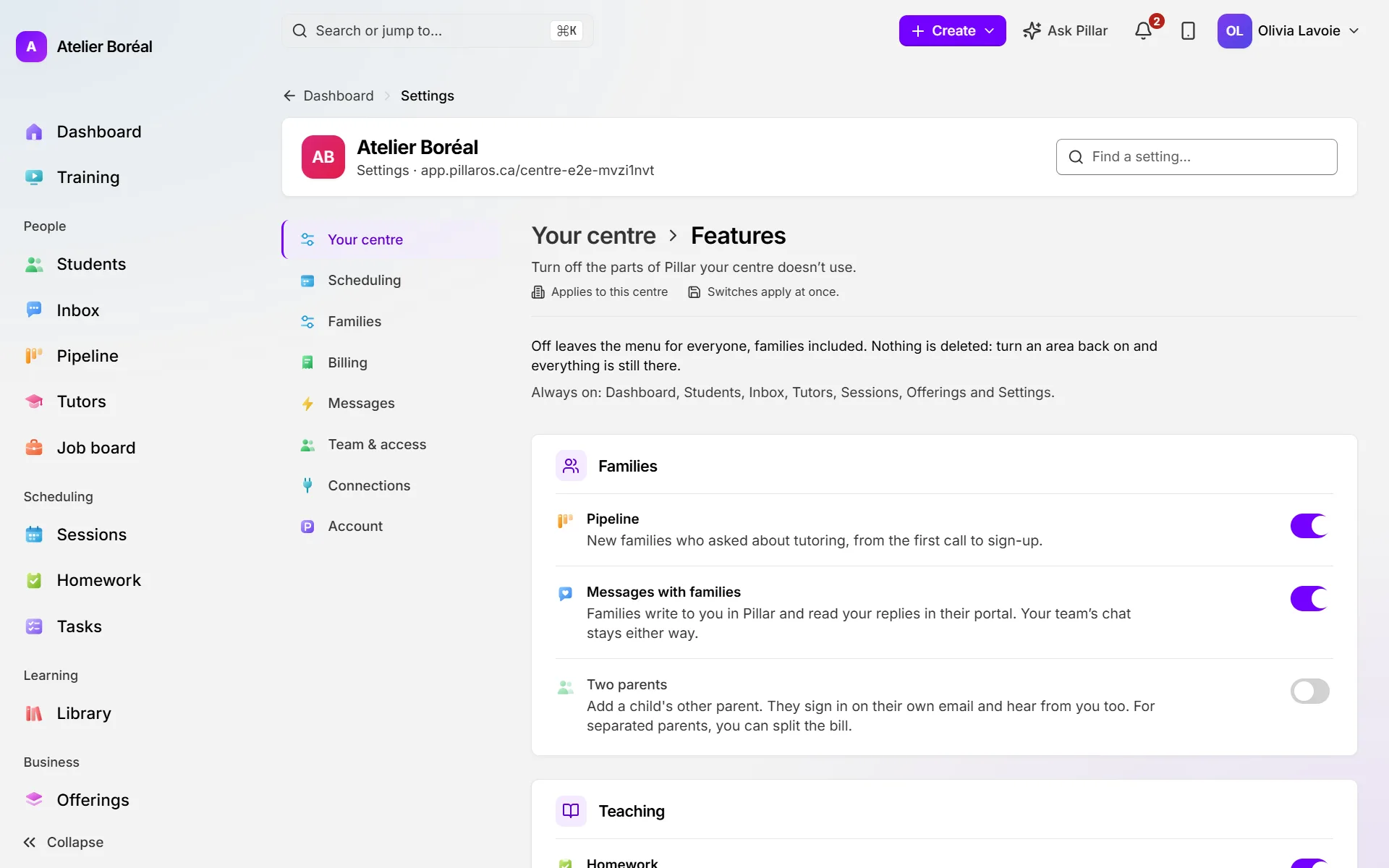
Only the owner, or an admin who can edit Settings, can turn it on.
Add the other parent
Where: People › Students › the student › Overview › Contact
- Click Add the other parent.
- Enter their Email (their own, never the main parent’s) and First name. Add the last name, phone, Language and Relationship (optional) if you have them.
- Leave Hears from you on so they get reminders, notes and cancellations, and Sees billing on so they see this child’s invoices and payments. Turn either off if needed.
- Leave Invite to the portal on to send them a sign-in email now.
- If the child has brothers or sisters, keep Also add … to … ticked to add the same parent to them.
- Click Add … and send the invitation (or Add … with the invitation off).
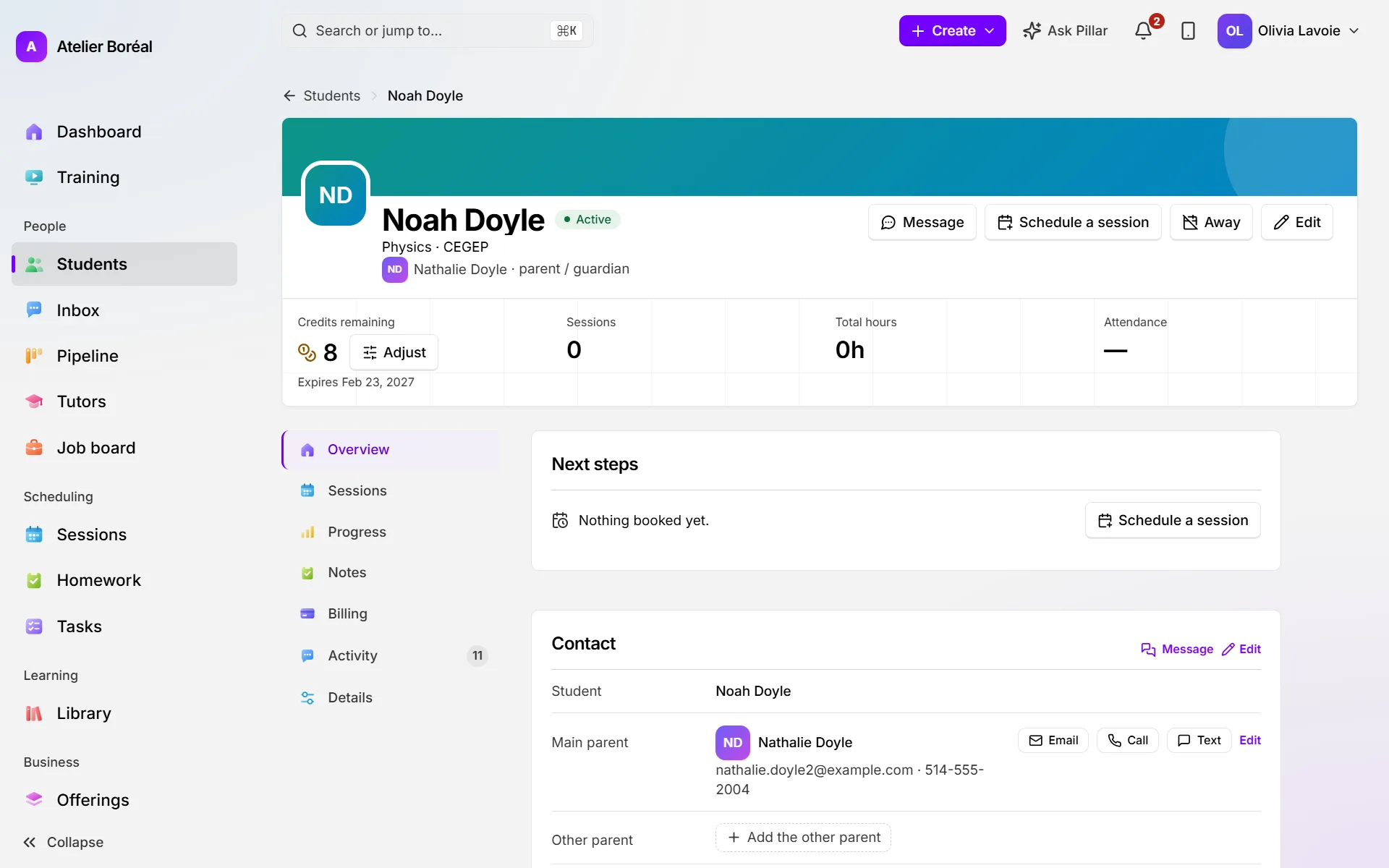
You can also add the other parent in the New student form, on Family & communication.
Split the bill between separated parents
Where: the student’s Contact card › Split the bill (or Billing › Settings › Who pays › Change)
- In Who pays for …?, choose … and … split the bill.
- Set the main parent’s share: drag the bar, type a whole percent, or click 50 / 50.
- Under …‘s share goes on, choose the other parent’s own bill, or their family bill with their other children.
- Tick Split …‘s bill the same way to do the same for brothers and sisters.
- Read the sentence that shows what each parent pays per session, then click Split the bill … / ….
To undo it, open Who pays again, choose One bill, to … and click Back to one bill.
Did this answer your question?
Thank you. It helps us know what to write better.
Related articles
Still stuck?
Support is included with every plan. Write to us and a person replies.
Contact support