Closed days and holidays
Close your centre on public holidays and for your own breaks, and cancel the lessons already booked on those days.
 Written by the Pillar OS team Updated November 2, 2026
Closed days are the days your centre doesn’t open: public holidays every year, and your own breaks like the Christmas holidays. Families can’t book on them, and new weekly lessons skip them.
Close on public holidays
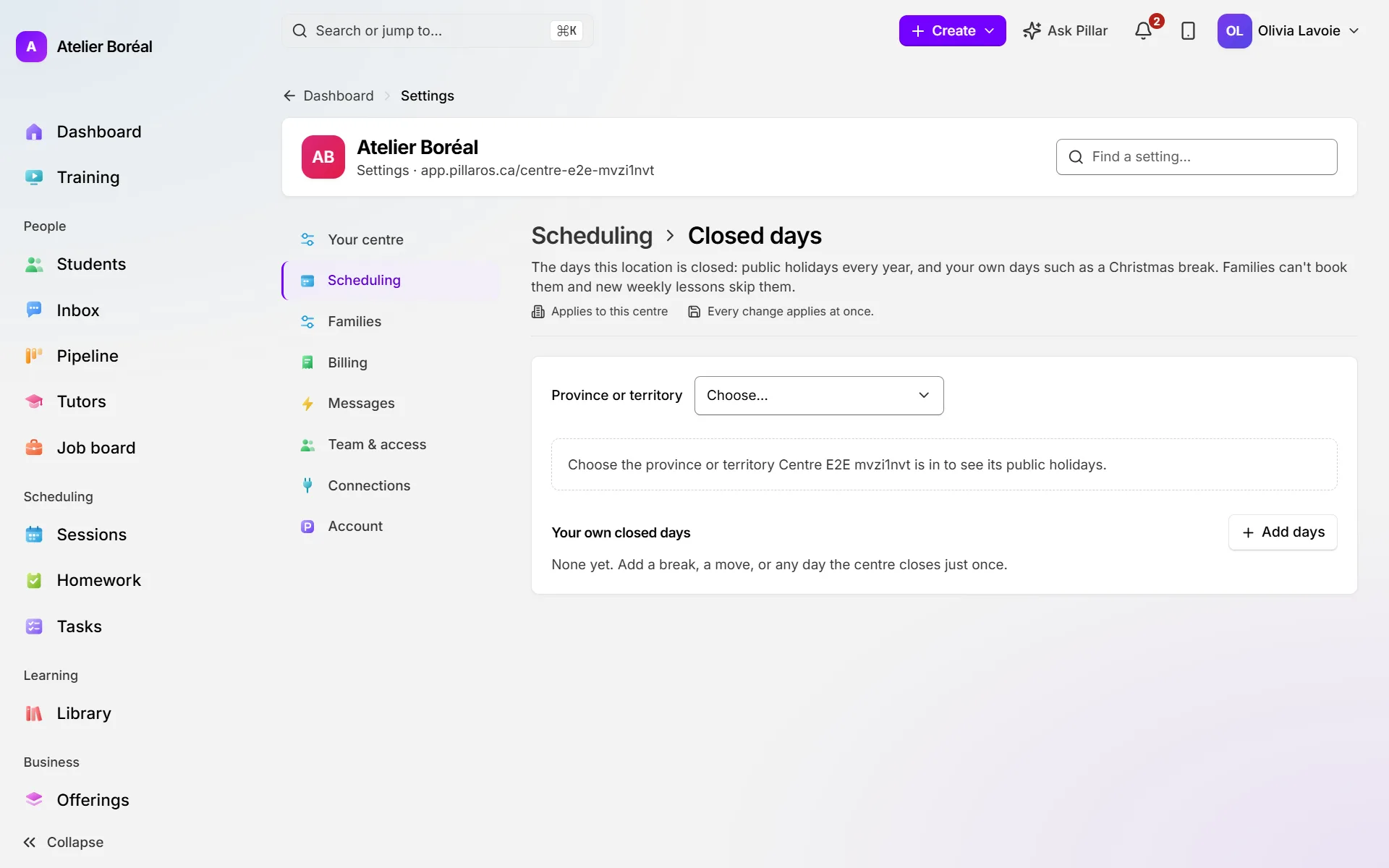
Where: Settings › Scheduling › Closed days
- Pick your Province or territory to see its public holidays.
- Under Public holidays in …, turn on each holiday you close for. The centre is then closed that day every year.
- Or click Close on all to close on every statutory holiday at once.
- Switch on any day under Other holidays (not statutory) the same way.
Add a break or a one-time closure
Where: Settings › Scheduling › Closed days, under Your own closed days
- Click Add days.
- Choose the First day. For several days in a row, choose the Last day too (leave it blank for one day).
- Give it a Name, like “Christmas break”.
- Click Close these days.
To reopen a closure, click Open again on its row. For a holiday, switch it off.
Cancel lessons already booked on a closed day
Where: Settings › Scheduling › Closed days
- A closed day that still has lessons says how many are still booked. Click Cancel them.
- Tick the box to tell the families. Each family gets one message with every cancelled date of their child.
- Click the button to cancel the lessons, or Keep them.
Did this answer your question?
Thank you. It helps us know what to write better.
Related articles
Still stuck?
Support is included with every plan. Write to us and a person replies.
Contact support