Book a lesson or a weekly series
Book a one-to-one lesson, a weekly series or a group session, move it on the calendar, and change its day, time or tutor.
 Written by the Pillar OS team Updated November 2, 2026
Every lesson at your centre is a session in Pillar. You book it once with its student, tutor, time and place, and the family gets a booking notification.
Book a one-to-one lesson
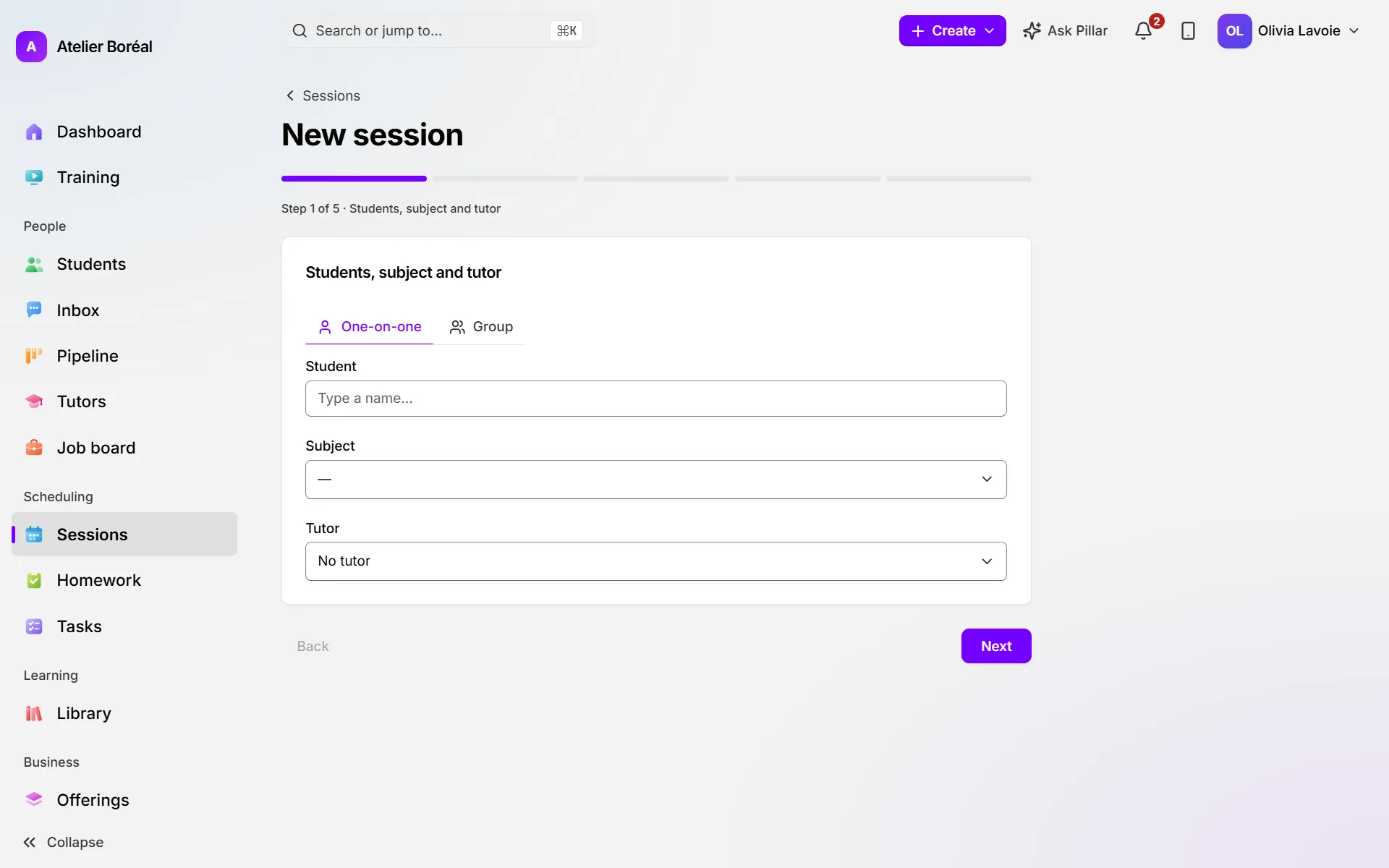
Where: Scheduling › Sessions, then New session (or Create › Session at the top of any page, or Schedule a session on a student’s record)
- On Students, subject and tutor, choose One-on-one, then pick the Student, the Subject and the Tutor. Click Next.
- On Date and recurrence, set Starts on, Start time and Duration (min). Leave Number of sessions at 1. Click Next.
- On Online or in person, choose the format. For online, leave Meeting link blank to use the tutor’s default room, or paste a link. For in person, fill in Location. Click Next.
- On Program and credits (named Program and billing if your centre doesn’t use credits), pick a Program (optional) or a Service (optional) if one applies. Click Next.
- On Review and schedule, read the summary and click Confirm & schedule.
Book a weekly lesson
Where: the same form, on the Date and recurrence step
- Pick the Days the lesson runs. Tick A different time each day if the times differ.
- Under Repeats, choose Every week or Every 2 weeks.
- Set Number of sessions to the total number of lessons, every day counted. Two days a week for ten weeks is 20.
- If some dates clash, leave those dates out and book the others.
- Finish the remaining steps and click Confirm & schedule.
Book a group session
Where: the same form, on the first step
- Choose Group.
- Tick each student under Participants.
- Continue as for a one-to-one lesson.
For a class or a camp with sections, seats and a price families pay, create a program instead: see Group classes and camps.
Book or move a lesson on the calendar
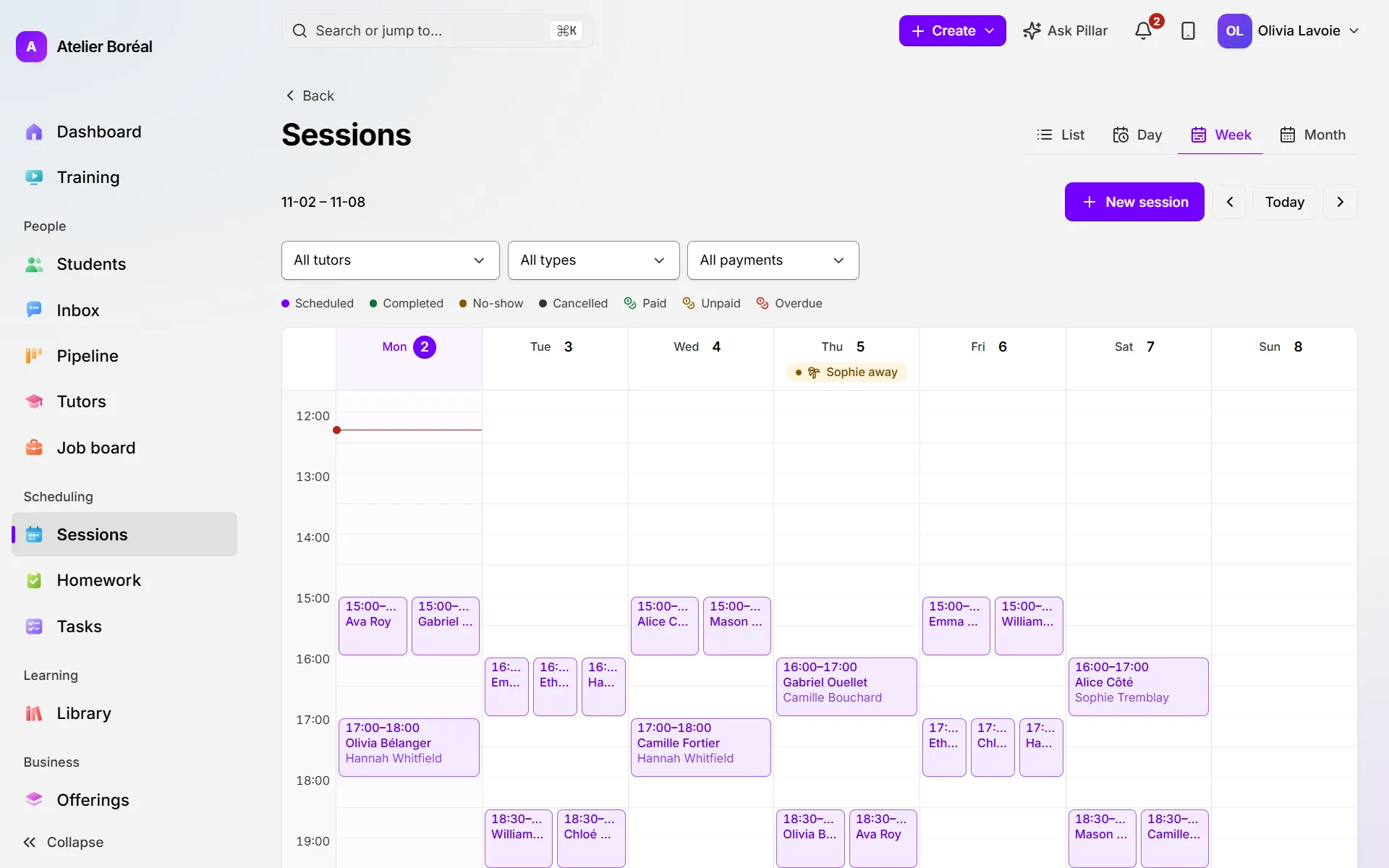
Where: Scheduling › Sessions, then the Day, Week or Month tab
- Double-click an empty half-hour in the day or week view to book at that time, or click New session.
- To move a lesson to another day, drag it onto that day. It keeps its start time.
Change a lesson’s day, time or tutor
Where: open the session, then Edit session
- Change the Date, Start time or Duration (min), or the subject, format, location or meeting link. Only owners and admins can change the Tutor.
- For a series, choose under Apply to: This session only, This and following, All in series or Choose sessions.
- Tick Tell the family if they should get a message saying what changed.
- Click Save changes.
Did this answer your question?
Thank you. It helps us know what to write better.
Related articles
Still stuck?
Support is included with every plan. Write to us and a person replies.
Contact support